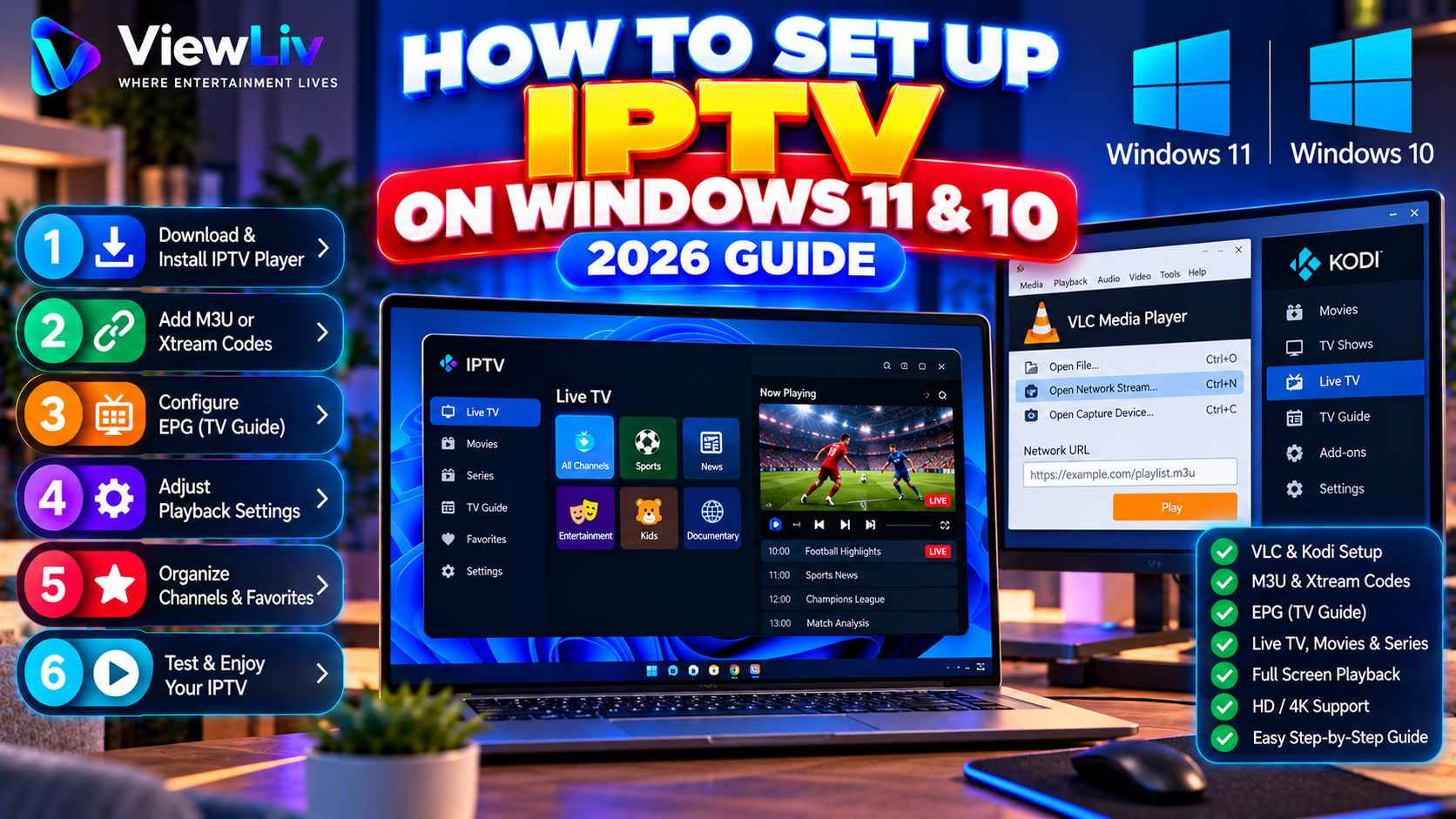
Windows computers provide a flexible way to watch authorized internet television and compatible video streams without requiring a dedicated Smart TV or streaming device.
Whether you use a Windows 11 laptop, a Windows 10 desktop, or a computer connected to a television, you can install compatible media players that support IPTV streaming formats.
However, different applications offer different features. Some focus on simple M3U playlist playback, while others provide Electronic Program Guides (EPG), channel categories, and account-based connections.
In this 2026 step-by-step guide, you'll learn how to set up IPTV on Windows 11 and Windows 10, install VLC or Kodi, add an M3U playlist, understand Xtream Codes-style login, configure EPG information, and troubleshoot common playback problems.
What Is IPTV on Windows PC?
IPTV stands for Internet Protocol Television. It refers to delivering television and video content over internet-based networks.
A Windows computer can access compatible authorized streams through media player applications.
Depending on the application and content source, features may include:
- Live television playback.
- M3U and M3U8 playlists.
- Xtream Codes-style connections.
- Electronic Program Guides.
- Channel categories and favorites.
- Movies and series organization.
- Subtitles and audio-track selection.
- Full-screen playback.
- Multiple monitors.
- Recording where supported and permitted.
Important: An IPTV media player does not automatically include premium television channels or movies. Users must supply properly authorized media sources.
For a general introduction, read our What Is IPTV? Complete 2026 Guide.
Can You Watch IPTV on Windows 11 and Windows 10?
Yes. Both Windows 11 and Windows 10 can run compatible media applications that play authorized IPTV streams.
However, there is an important difference in 2026.
Windows 10 reached the end of standard support on October 14, 2025. Computers not covered by an applicable extended security update arrangement no longer receive regular Windows 10 security updates.
For better long-term security, Microsoft recommends moving to a supported operating system where possible.
IPTV playback may still work on Windows 10, but application compatibility and security should be considered.
On either operating system, successful playback depends on:
- Computer hardware.
- Internet connection.
- Media player compatibility.
- Supported video codecs.
- Authorized stream availability.
- Correct playlist or account configuration.
What You Need Before Setting Up IPTV on Windows
Prepare the following:
- A Windows 11 or Windows 10 computer.
- A stable internet connection.
- A trusted media player.
- An authorized streaming source.
- An M3U playlist URL or file, or supported account credentials.
- EPG information if your source provides it.
- Sufficient available storage for the application.
You may also use external speakers, headphones, or a television connected through HDMI.
Keep private streaming credentials secure.
Step 1: Connect Your Windows PC to the Internet
Before installing an IPTV player, confirm that your computer has a working internet connection.
Connect Using Wi-Fi
- Open Windows Settings.
- Select Network & Internet.
- Choose Wi-Fi.
- Connect to your wireless network.
- Enter the network password if required.
- Confirm that the connection is active.
Connect Using Ethernet
If your computer has an Ethernet port, connect it to your router using a suitable network cable.
Ethernet can provide more consistent connectivity in environments with wireless interference.
Test the Internet Connection
Open a trusted website or streaming service.
If multiple websites and applications cannot connect, investigate the network before configuring IPTV.
Step 2: Choose the Best IPTV Player for Windows
Several media players can open compatible IPTV streams on Windows.
VLC Media Player
VLC is a free, open-source media player developed by the VideoLAN project.
It supports numerous audio and video formats, M3U playlists, and network streams.
VLC is a practical choice for users who want straightforward playback without a complex setup.
Official website: https://www.videolan.org/vlc/
Kodi
Kodi is a free, open-source media center.
With the IPTV Simple Client add-on, it can display M3U playlists, live television channels, and EPG information.
Kodi is useful for users who prefer a television-style interface and extensive customization.
Official website: https://kodi.tv/
Specialized Windows IPTV Players
Some dedicated Windows IPTV applications offer:
- Xtream Codes-style login.
- M3U playlist management.
- Live television categories.
- EPG support.
- Favorites.
- Movies and series sections.
However, availability and features vary by developer and application version.
Check the official publisher, supported Windows version, privacy policy, and current features before installing.
Which Player Should You Choose?
Choose VLC if you want simple M3U and network stream playback.
Choose Kodi if you want a customizable media center with a television guide.
Consider a verified dedicated Windows IPTV player if you specifically need Xtream Codes-style login or specialized playlist management.
For a comparison, read Best IPTV Players for Smart TV, Android TV, Fire TV & Windows.
Step 3: Download and Install VLC on Windows
VLC is one of the simplest ways to begin playing compatible network streams.
VLC Installation Instructions
- Open your web browser.
- Visit https://www.videolan.org/vlc/
- Select the Windows download option.
- Download the official installer.
- Open the downloaded installation file.
- Follow the setup instructions.
- Complete the installation.
- Launch VLC Media Player.
Avoid downloading modified installers from unknown websites.
After opening VLC, you can add a compatible M3U playlist or individual network stream.
Step 4: Set Up IPTV Using an M3U Playlist in VLC
An M3U playlist is a text-based file containing references to media resources.
VLC supports compatible M3U playlists.
Method 1: Open an M3U Playlist URL
- Open VLC Media Player.
- Select Media from the top menu.
- Choose Open Network Stream.
- Enter your authorized M3U playlist URL.
- Select Play.
- Wait for the playlist or stream to load.
If the playlist contains multiple entries, open VLC's playlist view to navigate the available items.
You can typically access the playlist view using Ctrl + L.
Method 2: Open a Local M3U File
- Save your authorized M3U playlist file on your computer.
- Open VLC.
- Select Media.
- Choose Open File.
- Browse to the M3U file.
- Select it and open it.
- Navigate the available playlist entries.
Example M3U Playlist
A simplified playlist may look like this:
#EXTM3U
#EXTINF:-1,Example Channel
https://example.com/authorized-stream.m3u8
This is a format illustration, not an active television channel.
For more information, read What Is an M3U Playlist? How It Works & How to Use It.
Step 5: Install Kodi on Windows
Kodi is suitable for users who want a more complete media-center experience.
Kodi Installation Instructions
- Open your web browser.
- Visit https://kodi.tv/download/
- Select the Windows platform.
- Download the appropriate official installer.
- Run the installation file.
- Follow the setup instructions.
- Launch Kodi.
Kodi's interface is different from VLC.
Instead of focusing primarily on individual media files, Kodi provides a media-center environment with sections for different content types.
Step 6: Configure IPTV Simple Client in Kodi
Kodi supports IPTV playback through compatible PVR add-ons.
One commonly used option is IPTV Simple Client.
Setup Instructions
- Open Kodi.
- Navigate to Add-ons.
- Open the add-on browser.
- Choose Install from repository.
- Navigate to the PVR clients category.
- Select IPTV Simple Client.
- Install the add-on.
- Open its configuration settings.
- Choose the supported M3U playlist source option.
- Enter your authorized M3U URL or select a local playlist file.
- Configure EPG information if available.
- Save the settings.
- Enable the add-on if necessary.
- Allow Kodi to load the channel information.
The exact menus may vary between Kodi versions.
After successful configuration, live television and guide information may appear in Kodi's television section.
Note: IPTV Simple Client does not provide a native Xtream Codes-style username-and-password login.
Step 7: Set Up IPTV Using Xtream Codes on Windows
Some specialized Windows IPTV players support Xtream Codes-style account connections.
This connection method typically requires:
- Server URL.
- Username.
- Password.
General Xtream Codes Setup
- Install a trusted Windows IPTV player that explicitly supports the connection method.
- Open the application.
- Select Add Account or Add Playlist.
- Choose Xtream Codes-style login.
- Enter the server URL supplied by your authorized provider.
- Enter the username.
- Enter the password.
- Add a profile name if requested.
- Save the configuration.
- Wait for the application to load the available media.
Does VLC Support Xtream Codes Login?
VLC can open compatible network URLs and playlists, but it does not provide a dedicated Xtream Codes-style account interface.
Does Kodi Support Xtream Codes Login?
Kodi's IPTV Simple Client primarily uses playlist and guide sources rather than native Xtream Codes account login.
Other add-ons may have different capabilities, but users should evaluate their security and legitimacy carefully.
For a detailed explanation, read M3U vs Xtream Codes: What's the Difference?.
Step 8: Configure the Electronic Program Guide
An Electronic Program Guide, or EPG, displays television schedules and programme information.
Some authorized IPTV sources provide EPG data in XMLTV format.
How to Configure EPG in Kodi
- Open Kodi.
- Navigate to the IPTV Simple Client configuration.
- Find the EPG settings.
- Choose the appropriate XMLTV source option.
- Enter the authorized EPG URL or local file path.
- Save the configuration.
- Allow the guide data to refresh.
- Open Kodi's television guide.
Why Is My EPG Empty?
Possible causes include:
- Missing EPG data.
- Incorrect guide URL.
- Channel identifiers that do not match.
- Temporary guide-source problems.
- Configuration errors.
If programme times are incorrect, check your Windows time-zone settings and the application's guide configuration.
Does VLC Have an IPTV EPG?
VLC is not designed around a dedicated television-style EPG experience.
If a full programme guide is important, Kodi or a compatible dedicated IPTV player may be more suitable.
Step 9: Organize IPTV Channels and Favorites
Depending on your chosen application, you may be able to organize available channels.
Common features include:
- Channel groups.
- Favorites.
- Search.
- Playlist management.
- EPG navigation.
- Recently watched items.
- Multiple media sources.
Kodi provides a more television-oriented interface for channel browsing.
VLC offers straightforward playlist navigation but fewer specialized IPTV organization features.
Choose the interface that matches your viewing habits.
Step 10: Optimize IPTV Playback on Windows
Windows computers offer several settings that may influence playback performance.
Video Resolution
Choose a stream quality appropriate for your monitor, media source, and network.
A 4K monitor does not guarantee that every stream is available in 4K.
Hardware Acceleration
Some media players support hardware-accelerated video decoding.
This allows compatible graphics hardware to assist with video playback.
If a stream shows artifacts or a black screen, test the player's available decoding settings.
Audio Output
Check that Windows is using the correct speakers, headphones, or HDMI audio device.
Subtitles
Enable subtitles where supported by the application and media source.
Full-Screen Mode
VLC supports full-screen playback, making it suitable for computers connected to televisions.
Multiple Monitors
If you use more than one display, select the appropriate screen and audio output before playback.
Step 11: Watch IPTV on a TV Using Your Windows Laptop
You can connect a compatible Windows laptop or desktop to a television using HDMI.
HDMI Setup Instructions
- Connect an HDMI cable between your computer and television.
- Turn on the television.
- Select the correct HDMI input.
- On Windows, press Windows + P.
- Choose Duplicate or Extend.
- Open your IPTV media player.
- Move the player to the television display if necessary.
- Enable full-screen playback.
- Select the correct HDMI audio output if required.
This method can be useful when you want to watch compatible streams on a larger screen without installing an additional application on the television.
IPTV Not Working on Windows? Common Problems and Fixes
Several issues can prevent successful IPTV playback.
Problem 1: VLC Cannot Open the MRL
VLC may display an error indicating that it cannot open the specified media resource.
Check the playlist URL, network connection, and source availability.
Also verify that the stream format is supported.
Problem 2: M3U Playlist Not Loading
Confirm that the playlist file or URL is valid.
Check whether the authorized source is still accessible.
Problem 3: Xtream Codes Login Failed
Verify the server URL, username, password, and account status.
Problem 4: IPTV Shows a Black Screen
Test another authorized stream.
Check video codec compatibility and hardware-decoding settings.
Problem 5: IPTV Has No Sound
Check the Windows volume mixer, selected audio output, and player settings.
Problem 6: EPG Not Working
Verify the guide URL, channel mapping, and time-zone settings.
Problem 7: Channels Are Missing
Refresh the playlist and check channel groups or filters.
Problem 8: IPTV Player Keeps Crashing
Update the application and relevant system components.
Check available memory and storage.
Problem 9: IPTV Keeps Buffering
Test network stability and compare other authorized streams.
Problem 10: Windows Firewall Is Blocking the Player
Check whether Windows Security has blocked necessary application network access.
Only permit applications you trust.
Avoid disabling the firewall entirely.
For more solutions, read IPTV Not Working? 15 Common Problems and How to Fix Them.
How to Fix IPTV Buffering on Windows 11 and 10
Buffering occurs when the media player cannot receive or process video data quickly enough for continuous playback.
Possible causes include:
- Weak Wi-Fi.
- Network congestion.
- Source-server instability.
- High streaming bitrate.
- Unsupported media formats.
- Computer performance limitations.
- Application configuration problems.
Recommended Troubleshooting Steps
- Test your internet connection.
- Restart the router if necessary.
- Try Ethernet instead of Wi-Fi.
- Close unnecessary bandwidth-heavy applications.
- Update VLC, Kodi, or your chosen player.
- Check CPU and memory usage.
- Test another authorized stream.
- Select a lower stream quality if available.
- Review hardware-decoding settings.
- Restart the computer if the problem persists.
No media player can guarantee zero buffering under every network condition.
For more information, read How to Fix IPTV Buffering and Freezing: 15 Proven Troubleshooting Tips.
How to Check IPTV Player Performance in Windows
Windows includes tools that can help identify performance problems.
Use Task Manager
- Press Ctrl + Shift + Esc.
- Open Task Manager.
- Select the Processes or Performance section.
- Check CPU usage.
- Check memory usage.
- Review network activity.
- Observe whether resource usage increases during playback.
If the computer is heavily loaded, close unnecessary applications and test again.
Check Network Activity
Windows Task Manager can show network usage.
However, a low network reading does not automatically prove that the media source is working correctly.
Use the information alongside other troubleshooting tests.
Windows 11 vs Windows 10 for IPTV
Both operating systems can run compatible IPTV media players.
However, their support status differs in 2026.
| Feature | Windows 11 | Windows 10 | |---|---|---| | VLC support | Compatible versions available | Compatible versions available | | Kodi support | Compatible versions available | Compatible versions available | | M3U playback | Yes, through supported players | Yes, through supported players | | Xtream Codes login | Player-dependent | Player-dependent | | EPG | Player-dependent | Player-dependent | | Standard Microsoft support in 2026 | Supported versions | Ended October 14, 2025 | | Recommended for a new setup | Generally preferable on compatible hardware | Consider security and extended-support status |
Windows 11 is generally the better long-term choice for compatible computers because Windows 10 has reached the end of standard support.
However, neither operating system guarantees better IPTV playback.
Actual performance depends on the media player, computer hardware, network, and stream.
IPTV on Windows vs Android TV
Windows and Android TV provide different viewing experiences.
Windows Advantages
- Keyboard and mouse controls.
- General-purpose media players.
- Flexible window management.
- Multiple-monitor support.
- Easy access to local media files.
Android TV Advantages
- Remote-control navigation.
- Television-focused applications.
- Simplified living-room interface.
- Dedicated streaming hardware options.
Windows may be more convenient for users who watch video while working on a computer.
Android TV may be more convenient for viewers who primarily use a television remote.
For Android TV instructions, read How to Set Up IPTV on Android TV & Google TV.
Is IPTV Legal on Windows?
IPTV is a method of delivering media over internet-based networks.
It can be used for legitimate purposes, including:
- Licensed television streaming.
- Authorized live broadcasts.
- Personal network media.
- Publicly available streams distributed with permission.
- Other legally accessible online video.
However, installing VLC, Kodi, or another media player does not grant permission to access copyrighted content without authorization.
Users should obtain media from properly authorized sources and follow applicable laws and service terms.
Frequently Asked Questions About IPTV on Windows
Can I install IPTV on Windows 11?
Yes. Windows 11 supports compatible media players capable of playing authorized IPTV streams.
Does IPTV work on Windows 10?
Yes, compatible media players can still work on Windows 10. However, standard Windows 10 support ended in October 2025, so security and compatibility should be considered.
What is the best IPTV player for Windows?
VLC is useful for straightforward M3U and network playback. Kodi offers a customizable media-center interface and EPG support through IPTV Simple Client.
Is VLC free for IPTV?
VLC is free and open-source. It does not automatically include access to premium television channels.
Can VLC open M3U playlists?
Yes. VLC supports compatible M3U playlists and network streams.
Can VLC use Xtream Codes login?
VLC does not provide a dedicated Xtream Codes-style account interface.
Does Kodi support IPTV?
Yes. Kodi supports IPTV through compatible PVR add-ons such as IPTV Simple Client.
Can Kodi display an EPG?
Yes. Kodi can display compatible EPG information when configured with the appropriate guide source.
Can I watch IPTV on a Windows laptop?
Yes. A compatible laptop can play authorized internet streams using a supported media player.
Can I connect my laptop to a television?
Yes. Many Windows laptops support HDMI output or other compatible display connections.
Why is IPTV buffering on Windows?
Possible causes include unstable internet, network congestion, source problems, high video bitrate, or computer performance limitations.
Why does VLC show a black screen?
The stream may be unavailable or use a format that the player cannot decode correctly. Hardware-decoding settings may also affect playback.
Why does VLC say it cannot open the MRL?
The network resource may be incorrect, unavailable, restricted, or incompatible with the player.
Can I watch 4K IPTV on Windows?
Yes, if the computer, display, media player, codec, authorized source, and internet connection support 4K playback.
Do I need a VPN for IPTV on Windows?
A VPN is not inherently required for IPTV playback. It does not fix invalid credentials, unsupported codecs, or unavailable streams.
Can I record IPTV on Windows?
Some applications support recording. Availability depends on the player, source, storage, and content permissions.
Does an IPTV player include television channels?
Usually not. Most IPTV media players require users to supply their own authorized media sources.
Final Thoughts
Setting up IPTV on Windows 11 or Windows 10 in 2026 is generally straightforward when you choose a trusted media player and have the correct authorized connection information.
For basic M3U playback, VLC is a practical starting point.
For a television-style interface with programme-guide functionality, Kodi with IPTV Simple Client is worth considering.
If you need Xtream Codes-style login, choose a verified Windows application that explicitly supports it.
After configuring your player, test playback, check audio and video settings, and troubleshoot any problems systematically.
For more helpful tutorials, explore the ViewLiv Blog, including our guides to Best IPTV Players, M3U Playlists, and IPTV Buffering Fixes.
Published by ViewLiv — Where Entertainment Lives.
Disclaimer: This article is for educational purposes. ViewLiv recommends trusted media applications and properly authorized streaming sources. Software features, operating-system support, and application compatibility may change.