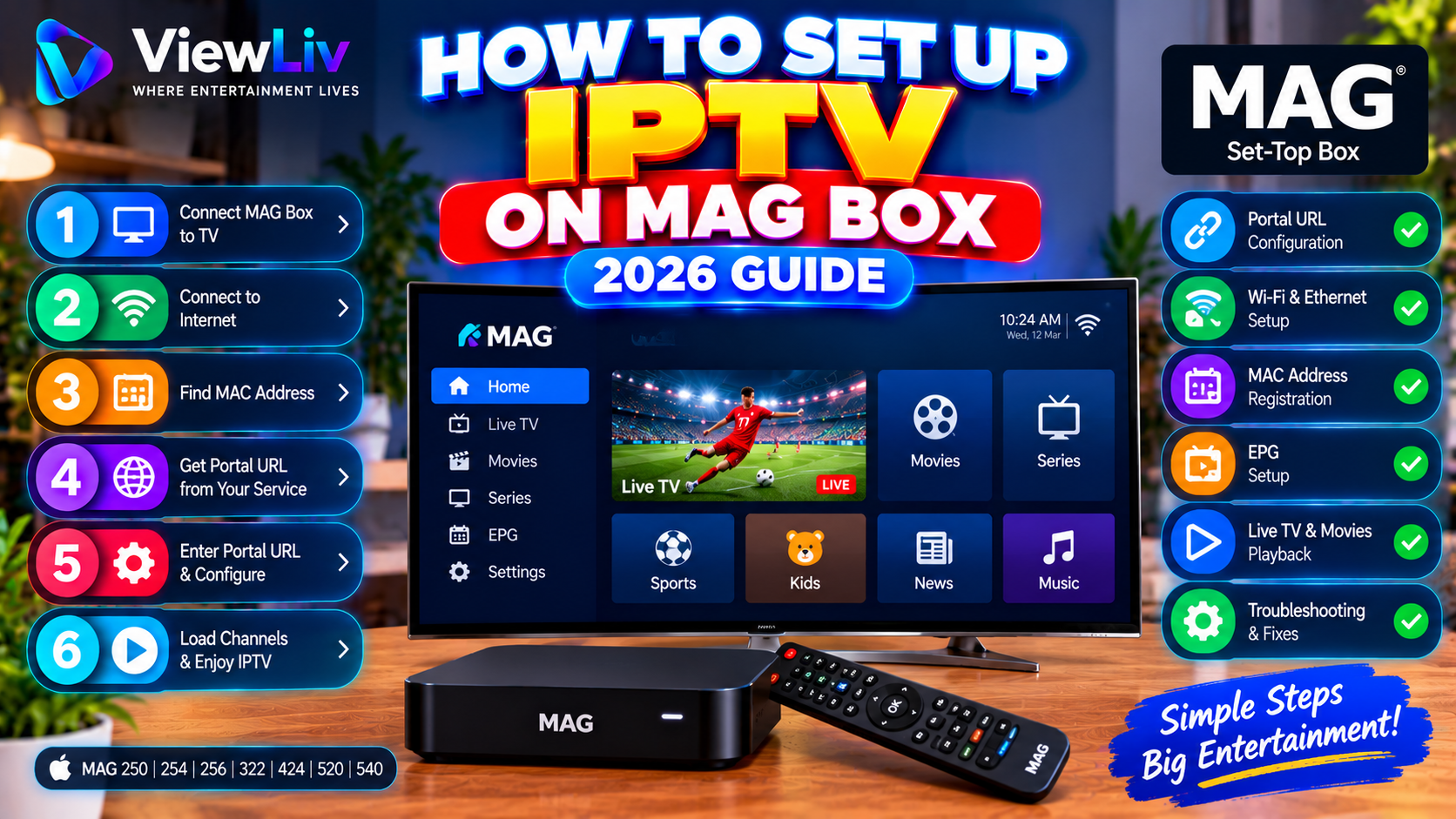
MAG boxes are dedicated set-top devices used to access compatible internet television and multimedia services.
Unlike general-purpose streaming devices such as Android TV boxes or Amazon Fire TV Sticks, many traditional MAG models use a portal-based system to connect to a television service.
If you're setting up a MAG box for the first time, understanding the portal URL, MAC address, network settings, and device compatibility is essential.
In this 2026 step-by-step guide, you'll learn how to connect a MAG box to your television, configure an authorized IPTV portal, understand MAC address registration, set up network and EPG settings, and troubleshoot common problems.
Important: MAG devices vary significantly by model and firmware. The instructions below primarily describe traditional Infomir MAG devices using compatible portal-based middleware. Android-based MAG models and operator-customized devices may use different menus and setup procedures.
What Is a MAG Box?
A MAG box is a set-top device designed for internet-based television and multimedia playback.
The MAG product family is associated with Infomir, a manufacturer of IPTV and OTT set-top boxes.
Depending on the model, a MAG device may support:
- Live television.
- Video-on-demand.
- Electronic Program Guides.
- Channel categories.
- Media playback.
- Network streaming.
- Remote-control navigation.
- Portal-based television services.
Some models use specialized Linux-based firmware, while others use Android-based software.
Not all MAG boxes have the same capabilities.
For a broader explanation of internet television, read What Is IPTV? How It Works, Benefits & Legal Considerations.
Which MAG Box Models Support IPTV?
Different MAG models support different firmware, video formats, and middleware systems.
Examples of MAG product families include:
- MAG250.
- MAG254.
- MAG256.
- MAG322.
- MAG324.
- MAG420.
- MAG424.
- MAG520.
- MAG540.
These are examples of models and product families, not a guarantee of compatibility with a particular service.
Some older models may have limited codec support, outdated firmware, or reduced application compatibility.
Before configuring a MAG box, verify:
- The exact model number.
- Firmware version.
- Supported middleware.
- Supported video formats.
- Network connectivity options.
- Compatibility with your authorized service.
What You Need Before Setting Up IPTV on a MAG Box
Prepare the following:
- A compatible MAG set-top box.
- Its power adapter.
- An HDMI cable or another supported video connection.
- A television.
- An internet connection.
- The MAG remote control.
- A valid portal URL from an authorized service.
- Any required account or device registration information.
Some services register a device using its MAC address.
Other services may require separate authentication.
Do not assume every MAG-compatible service uses the same activation method.
Step 1: Connect Your MAG Box to the Television
Begin by connecting the hardware.
Connection Instructions
- Turn off the television if necessary.
- Connect the MAG box to an available HDMI input.
- Connect the box to its supplied power adapter.
- Turn on the television.
- Select the appropriate HDMI input.
- Wait for the MAG device to start.
- Follow any initial setup instructions.
If the television shows no signal, check the HDMI cable, power supply, and selected input.
Some older MAG devices may offer additional video outputs.
Use the connection supported by your particular model.
Step 2: Connect Your MAG Box to the Internet
A stable internet connection is necessary for streaming.
Method 1: Ethernet Connection
For many MAG devices, Ethernet is the simplest option.
- Connect an Ethernet cable to the MAG box.
- Connect the other end to your router or network equipment.
- Open the device's network settings.
- Select the wired connection if required.
- Use automatic IP configuration unless your network requires manual settings.
- Save the configuration.
- Check the connection status.
Method 2: Wi-Fi Connection
Wi-Fi support depends on the MAG model.
Some devices have built-in wireless networking, while others require a compatible adapter.
If supported:
- Open network settings.
- Select the wireless connection option.
- Search for available networks.
- Choose your Wi-Fi network.
- Enter the password.
- Save the configuration.
- Confirm connectivity.
If no Wi-Fi option appears, verify the model's hardware capabilities.
Which Connection Is Better?
Ethernet can provide more consistent performance when Wi-Fi interference is an issue.
However, a properly configured Wi-Fi connection can also work well.
Step 3: Find Your MAG Box MAC Address
Many traditional MAG portal systems identify devices using a MAC address.
A MAC address is a network-interface identifier associated with the device.
How to Find the MAC Address
Depending on the model, you may find it:
- On a label attached to the device.
- On the packaging.
- In system information.
- In network settings.
- On a device information screen.
A MAC address commonly appears in a format such as:
00:1A:79:XX:XX:XX
This is an illustrative format, not an actual device identifier.
Why Is the MAC Address Important?
Some portal-based services use the MAC address to associate an authorized device with a subscription or service account.
The service operator may need to register the device before it can connect.
Important Security Advice
Treat your device's MAC address as account-related information when a service uses it for authentication.
Do not post it publicly or share it with unknown parties.
Only provide it to a trusted service operator when necessary.
Step 4: Understand the MAG Portal URL
Traditional MAG boxes often connect to an IPTV service through a portal URL.
A portal is a server-based interface that may provide:
- Channel lists.
- Live television.
- Programme information.
- Video-on-demand.
- Service menus.
- Account-specific access.
Example Portal URL
A portal address might resemble:
https://example.com/stalker_portal/c/
This is only an example of a possible address format.
Your authorized service must provide the actual compatible URL.
Is a Portal URL the Same as an M3U URL?
No.
A MAG portal URL connects a compatible device to a portal-based service.
An M3U playlist contains references to media resources.
The two formats are not automatically interchangeable.
Step 5: Enter the Portal URL on Your MAG Box
The following steps describe a common setup pattern for traditional MAG devices.
Exact menu labels depend on the model, firmware, and middleware.
Portal Configuration Instructions
- Turn on the MAG box.
- Open the device's system settings.
- Find the Servers section if available.
- Select Portals.
- Open the portal configuration screen.
- Enter a recognizable portal name.
- Enter the portal URL supplied by your authorized service.
- Save the settings.
- Restart the portal or device if prompted.
- Wait for the service interface to load.
Example Configuration
Portal name: My TV Service
Portal URL: https://example.com/stalker_portal/c/
Use your actual authorized connection information rather than the example above.
What If the Portals Menu Is Missing?
Possible explanations include:
- Your MAG model uses a different operating system.
- The firmware has a different interface.
- The device is managed by a service operator.
- The portal settings are restricted.
- Your model requires a different setup method.
Consult the official device documentation or the authorized service operator.
Do not attempt to bypass operator restrictions.
Step 6: Activate the MAG Box With Your Authorized Service
Some MAG-compatible services require device registration.
General Activation Process
- Locate the device's MAC address.
- Confirm that your service supports the MAG model.
- Provide the required device information through the service's authorized activation process.
- Confirm that the correct portal URL has been supplied.
- Wait for registration or activation.
- Restart the portal if instructed.
- Test access to the service.
Why Does the Portal Show an Authorization Error?
Possible reasons include:
- The device has not been registered.
- The account is inactive.
- The wrong portal URL was entered.
- The MAC address does not match the registered device.
- The service does not support the model.
- The portal server is unavailable.
Only the authorized service operator can resolve certain account-related problems.
Step 7: Load Channels and Test IPTV Playback
After successful portal configuration, the device may display the authorized service interface.
Depending on the portal, you may see:
- Live TV.
- Movies.
- Television series.
- Channel categories.
- EPG.
- Favorites.
- Search.
- Settings.
Test Playback
- Open the live television section.
- Choose an available channel.
- Start playback.
- Check picture quality.
- Confirm that audio is working.
- Test another channel.
- Review channel navigation.
- Check EPG information if available.
If some streams work and others fail, the issue may be specific to the source rather than the device.
Step 8: Configure the Electronic Program Guide
An Electronic Program Guide, or EPG, displays television schedules.
Some MAG portals provide EPG information automatically.
Others may have limited guide functionality.
How EPG Works on MAG
The portal or middleware may supply:
- Channel names.
- Current programmes.
- Upcoming programmes.
- Programme descriptions.
- Start and end times.
What If the EPG Is Empty?
Check:
- Whether the service provides guide information.
- Whether the portal loaded correctly.
- Whether the device's date and time are correct.
- Whether the service is experiencing temporary problems.
- Whether the firmware supports the required guide format.
Unlike some dedicated M3U players, traditional MAG portal interfaces may not provide a user-accessible option for adding an arbitrary XMLTV URL.
Step 9: Organize Channels and Favorites
Channel organization depends on the portal interface and firmware.
Available features may include:
Favorites
Save frequently watched channels for quicker access.
Categories
Browse channels by category when the service provides them.
Channel Search
Find specific channels if search is supported.
Programme Guide
Browse current and upcoming programmes.
Parental Controls
Some portals or firmware versions provide access restrictions or PIN settings.
Not all MAG devices or portals include these options.
Step 10: Adjust Video and Audio Settings
Incorrect output settings can cause display or sound problems.
Video Resolution
Open the device's video settings and choose a resolution compatible with your television.
Available options vary by model.
HDMI Output
Confirm that the correct output mode is selected.
Audio Settings
Check audio output options if sound is missing.
Aspect Ratio
Some devices allow you to adjust how video fits the television screen.
Video Codec Compatibility
Older MAG boxes may not support newer video formats.
If a stream fails while others work, the device may lack the required codec support.
A firmware update cannot necessarily add hardware decoding capabilities that the device does not possess.
Step 11: Update MAG Box Firmware
Firmware updates may improve stability, compatibility, and security.
However, MAG firmware updates require care.
Before Updating
- Confirm the exact device model.
- Check the installed firmware version.
- Consult official manufacturer instructions.
- Confirm that the firmware is intended for your model.
- Follow the recommended update procedure.
Important Warning
Do not install firmware designed for a different MAG model.
Incorrect firmware can cause serious device problems.
Operator-managed devices may require firmware supplied or approved by the service operator.
Avoid unofficial firmware downloads from untrusted websites.
MAG Box Not Working? Common Problems and Fixes
Problem 1: Portal Not Loading
Check the portal URL, internet connection, and service availability.
Problem 2: Authorization Failed
Verify device registration and account status with your authorized operator.
Problem 3: No Internet Connection
Check Ethernet or Wi-Fi settings, the router, and automatic IP configuration.
Problem 4: Black Screen During Playback
The stream may be unavailable or use an unsupported video format.
Problem 5: No Sound
Check the television volume, HDMI connection, and audio output settings.
Problem 6: Channels Missing
Restart the portal and confirm that the authorized service is providing the expected channel list.
Problem 7: EPG Not Showing
Check the device clock and whether the portal supplies guide data.
Problem 8: MAG Box Keeps Restarting
Check the power adapter, overheating, firmware stability, and hardware condition.
Problem 9: Remote Control Not Working
Check the batteries and whether the remote is compatible with the device.
Problem 10: Portal URL Is Correct but Connection Fails
The service may require device registration or may not support the firmware.
For additional troubleshooting, read IPTV Not Working? 15 Common Problems and How to Fix Them.
How to Fix IPTV Buffering on a MAG Box
Buffering occurs when the device cannot receive or process video data consistently enough for continuous playback.
Common Causes
- Unstable internet.
- Weak Wi-Fi.
- Network congestion.
- Source-server problems.
- High stream bitrate.
- Unsupported codecs.
- Device performance limitations.
- Firmware issues.
Recommended Troubleshooting Steps
- Test the internet connection.
- Restart the router if necessary.
- Try Ethernet instead of Wi-Fi.
- Restart the MAG box.
- Test another authorized channel.
- Check whether other network devices are using significant bandwidth.
- Review video output settings.
- Check for official firmware updates.
- Confirm that the service supports your device model.
- Contact the authorized operator if the problem affects only its streams.
No single setting can guarantee uninterrupted streaming.
For a detailed guide, read How to Fix IPTV Buffering and Freezing.
MAG Portal vs M3U vs Xtream Codes
These are different ways of configuring or accessing compatible streaming services.
| Feature | MAG Portal | M3U Playlist | Xtream Codes-style Login | |---|---|---|---| | Typical connection | Portal URL | Playlist URL or file | Server URL, username, password | | Common device use | Compatible MAG portal devices | Media players | Supported IPTV players | | Device registration | Sometimes MAC-based | Source-dependent | Account-based | | Channel categories | Portal-dependent | Playlist/player-dependent | Service/player-dependent | | EPG | Portal-dependent | May require separate source | Service/player-dependent | | Compatibility | Requires supported middleware | Requires M3U-capable player | Requires supported login interface |
A MAG portal URL is not necessarily usable in an M3U player.
Similarly, Xtream Codes credentials cannot automatically be entered into every traditional MAG portal interface.
For a detailed explanation, read M3U vs Xtream Codes: What's the Difference?.
MAG Box vs Android TV Box: Which Is Better?
MAG and Android TV devices serve different needs.
MAG Box Advantages
- Dedicated set-top-box design.
- Compatibility with certain portal-based television systems.
- Remote-control-focused interfaces.
- Integration with supported middleware.
Android TV Advantages
- Broader selection of compatible applications.
- Support for many M3U players.
- Availability of some Xtream Codes-style applications.
- Greater flexibility for general streaming services.
Which Should You Choose?
Choose a compatible MAG box when your authorized service specifically supports or requires its portal system.
Consider Android TV or Google TV when you need a broader range of streaming applications.
Read our Android TV & Google TV IPTV Setup Guide.
MAG Box vs Amazon Fire TV Stick
Amazon Fire TV devices use a different software platform from traditional MAG portal boxes.
Fire TV may support certain IPTV players that are not available on older MAG devices.
However, application compatibility depends on the Fire TV model and operating-system version.
MAG devices may be better suited to supported portal-based service deployments.
For Fire TV instructions, read How to Install IPTV on Amazon Fire TV Stick.
Is IPTV Legal on a MAG Box?
IPTV is a technology for delivering television and video over internet-based networks.
Legitimate uses include:
- Licensed television services.
- Authorized broadcasts.
- Operator-managed IPTV systems.
- Publicly distributed streams with appropriate permissions.
- Other legally accessible internet video.
However, using a MAG box or entering a portal URL does not automatically make a content source authorized.
Always use properly licensed services and comply with applicable laws and service terms.
Frequently Asked Questions About MAG Box IPTV
What is a MAG box?
A MAG box is a set-top device commonly used for compatible IPTV and multimedia services.
How do I install IPTV on a MAG box?
On traditional compatible MAG devices, you typically connect the device to the internet, enter an authorized portal URL, complete any required registration, and load the service interface.
What is a MAG portal URL?
It is a server address used by compatible portal-based middleware to access a television service.
What is a MAG MAC address?
It is a network-interface identifier that some portal-based services use for device registration.
Do all MAG boxes use MAC address activation?
No. Activation methods depend on the model, firmware, middleware, and service.
Can I use an M3U playlist on a MAG box?
Support depends on the device and its software. Traditional portal configuration is not the same as adding an M3U playlist.
Can I use Xtream Codes on a MAG box?
That depends on the device's operating system and available software. Traditional portal interfaces do not necessarily support Xtream Codes-style login.
Does MAG support Wi-Fi?
Some models support Wi-Fi directly or through compatible adapters. Others may rely on Ethernet.
Can I watch 4K IPTV on a MAG box?
Only if the particular MAG model, stream, codec, television, and network support 4K playback.
Why does my MAG box say authorization failed?
Possible causes include incorrect registration, inactive access, a mismatched MAC address, or service incompatibility.
Why is my MAG portal not loading?
Check the portal URL, network connection, device compatibility, and service availability.
Can I change the portal URL?
Some MAG devices allow portal editing. Operator-managed or restricted devices may not.
Does MAG support EPG?
Many compatible portal systems support programme-guide information, depending on the service and firmware.
Can I install Android APK files on a MAG box?
Traditional Linux-based MAG devices do not run Android APK files. Android-based MAG models have different capabilities and restrictions.
Can I update MAG firmware?
Yes, when an official compatible update is available. Follow the manufacturer's or authorized operator's instructions.
Why is IPTV buffering on my MAG box?
Possible causes include unstable networking, source problems, high bitrate, or device limitations.
Can I use one MAG subscription on multiple boxes?
That depends on the authorized service's account and device policies.
Is a MAG box better than Android TV?
It depends on your requirements. MAG devices can suit portal-based services, while Android TV may offer more application flexibility.
Do MAG boxes include free television channels?
A MAG box does not automatically include a licensed television subscription. Available content depends on the authorized service.
Do I need a VPN for MAG IPTV?
A VPN is not inherently required for IPTV playback and does not resolve incorrect portal URLs, account registration, or unsupported formats.
Final Thoughts
Setting up IPTV on a MAG box in 2026 requires understanding how your particular device connects to an authorized television service.
For many traditional MAG models, the essential steps are connecting the hardware, configuring the network, entering the correct portal URL, and completing any required device registration.
Once connected, you can explore the service's available channels, programme guide, and playback options.
If problems occur, check your network, portal settings, device compatibility, and account status before changing firmware or advanced settings.
For more tutorials, explore the ViewLiv Blog, including our guides to Android TV IPTV Setup, M3U vs Xtream Codes, and IPTV Buffering Fixes.
Published by ViewLiv — Where Entertainment Lives.
Disclaimer: This article is for educational purposes. ViewLiv recommends trusted hardware, official firmware, and properly authorized streaming sources. Device menus, firmware features, portal compatibility, and service requirements vary by model and operator.