IPTV buffering and freezing can turn a relaxing television session into a frustrating experience. Whether you're watching live television, an educational broadcast, or an on-demand video, constant loading circles and playback interruptions can make streaming difficult.
The good news is that many common IPTV buffering problems can be diagnosed and improved with a few practical troubleshooting steps.
Sometimes the problem comes from an unstable Wi-Fi connection. Other times, it may be caused by a slow internet connection, outdated streaming software, device limitations, or issues with the streaming provider.
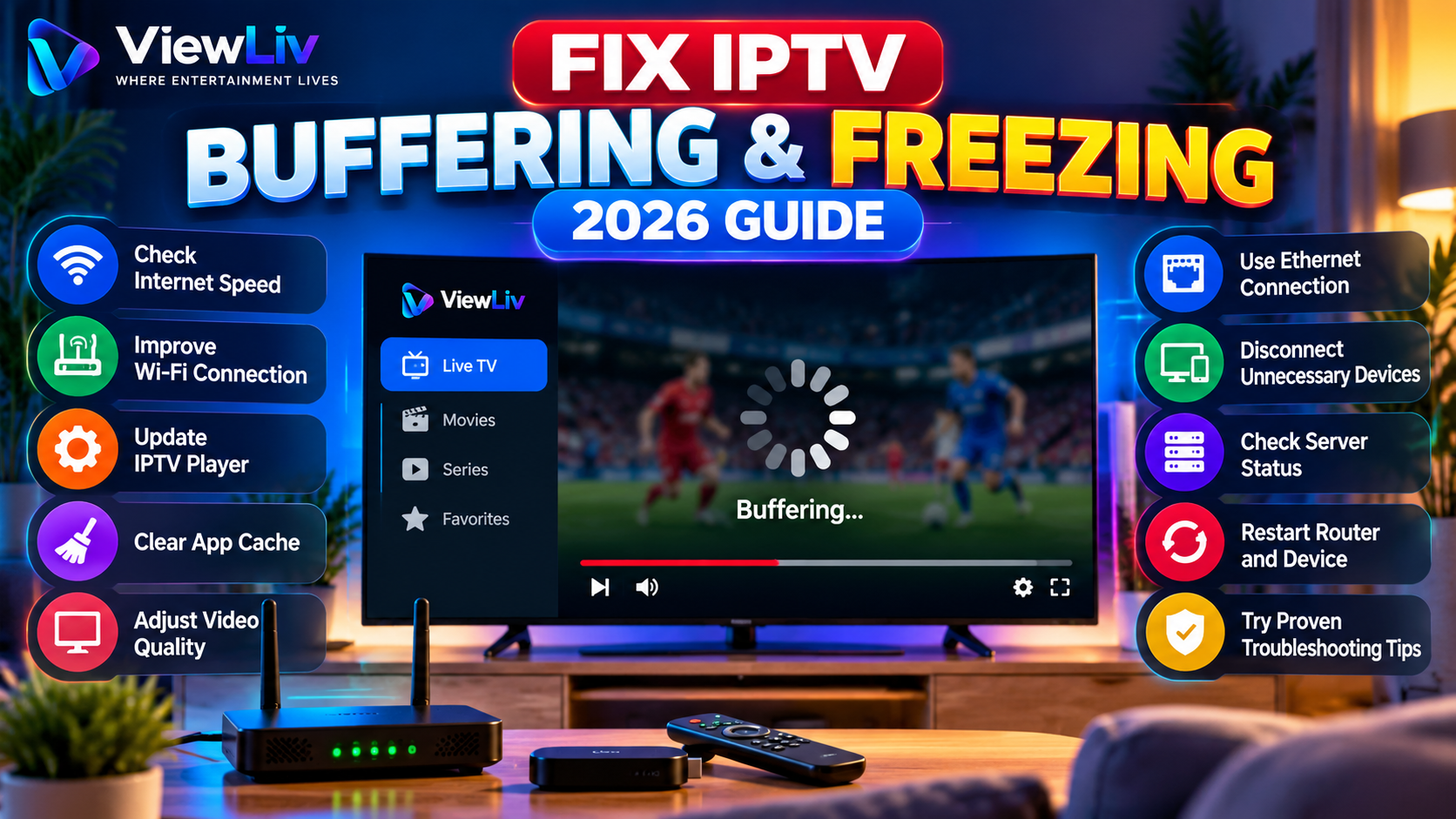
In this 2026 troubleshooting guide, we'll explain why IPTV keeps buffering, how to identify the cause, and 15 practical ways to improve playback on compatible Smart TVs, Android TV, Google TV, Fire TV, smartphones, and computers.
What Is IPTV Buffering?
IPTV buffering occurs when a media player cannot receive or process streaming video data quickly enough to maintain uninterrupted playback.
Most streaming applications temporarily store a small amount of video data in a buffer before displaying it.
This buffer helps compensate for brief network fluctuations.
When the player consumes buffered data faster than new data arrives, playback may pause while the application waits for more information.
You may notice:
- A spinning loading circle.
- Video freezing for several seconds.
- Frequent pauses during playback.
- Audio continuing while the picture stops.
- Long channel loading times.
- Playback restarting unexpectedly.
- Reduced video quality.
Occasional buffering can happen with internet-based video. However, frequent interruptions usually indicate an issue worth investigating.
Why Does IPTV Keep Buffering or Freezing?
There is no single cause of IPTV buffering.
Several components work together during playback, including your internet connection, home network, streaming device, media player, and the content delivery infrastructure.
Common causes include:
- Insufficient available internet bandwidth.
- Weak or congested Wi-Fi.
- Network latency, packet loss, or unstable routing.
- Too many devices sharing the connection.
- Overloaded or unavailable streaming servers.
- Outdated media player software.
- Device memory or processing limitations.
- Unsupported video codecs.
- Incorrect player settings.
- Problems with the source media.
Understanding where the problem occurs is more useful than randomly changing settings.
For an introduction to the underlying technology, read our What Is IPTV? Complete Guide.
How Much Internet Speed Do You Need for IPTV?
The required internet speed depends on video resolution, compression, bitrate, and the number of simultaneous streams.
The following are approximate starting points for a single stream, not guaranteed minimums.
| Streaming quality | Suggested available speed | |---|---| | Standard definition (SD) | 3–5 Mbps | | HD 720p | 5–10 Mbps | | Full HD 1080p | 10–15 Mbps | | 4K Ultra HD | 25 Mbps or more |
Some streams need less bandwidth, while high-bitrate streams may require more.
Also remember that advertised internet speed is not always the same as the bandwidth available to your streaming device.
A 50 Mbps connection shared by several people may perform differently from the same connection used by only one device.
For consistent playback, connection stability can matter just as much as maximum download speed.
Fix 1: Test Your Internet Connection
Start by checking whether your internet connection is working normally.
Use a reputable internet speed testing service on the streaming device, if supported, or on another device connected to the same network.
Check:
- Download speed.
- Latency or ping.
- Connection consistency.
- Whether speeds drop at certain times.
Run several tests rather than relying on a single result.
If possible, compare results from a device close to the router with results from your Smart TV.
A significant difference may indicate a local Wi-Fi problem.
Tip: A good speed test does not guarantee that a particular video stream will work perfectly. It only helps evaluate part of the connection.
Fix 2: Restart Your Router and Streaming Device
Restarting network equipment can resolve temporary connectivity issues.
Try the following:
- Close the streaming application.
- Restart your Smart TV or streaming device.
- Restart your router using its normal restart function, or follow the manufacturer's instructions.
- Wait until the internet connection is restored.
- Open the streaming application again.
If the problem was caused by a temporary network or software issue, playback may improve.
Avoid repeatedly restarting equipment if the problem persists. Move on to the other diagnostic steps.
Fix 3: Use an Ethernet Connection Instead of Wi-Fi
A wired Ethernet connection can provide more consistent network performance than Wi-Fi, particularly in environments with interference or weak wireless coverage.
If your television or streaming device supports Ethernet:
- Connect a suitable Ethernet cable to the device.
- Connect the other end to your router or network switch.
- Open the device's network settings.
- Confirm that the wired connection is active.
- Test playback again.
Ethernet can help reduce wireless interference and connection fluctuations.
However, a wired connection cannot fix an overloaded streaming server or an unstable internet connection outside your home.
Fix 4: Improve Your Wi-Fi Signal
If Ethernet is unavailable, improving Wi-Fi coverage may help.
Try moving your router to a more central location and keeping it away from large metal objects, thick walls, and sources of interference.
If your router and device support both 2.4 GHz and 5 GHz networks, compare them.
2.4 GHz Wi-Fi
Generally offers greater range and better penetration through some obstacles, but may experience more interference and congestion.
5 GHz Wi-Fi
Can provide higher speeds and lower interference in some environments, but typically has a shorter effective range.
The best choice depends on the distance between the router and streaming device, your building layout, and local wireless conditions.
For large homes, a well-configured mesh Wi-Fi system may improve coverage.
Fix 5: Disconnect Unnecessary Devices
Your household may have several devices sharing one internet connection.
Examples include:
- Smartphones downloading updates.
- Computers uploading large files.
- Gaming consoles downloading games.
- Smart TVs streaming simultaneously.
- Cloud backup services.
- Security cameras uploading video.
These activities can compete for bandwidth.
Temporarily pause large downloads and uploads, then test IPTV playback again.
If buffering improves, network congestion may be contributing to the problem.
Some routers offer Quality of Service (QoS) settings to help manage traffic, although results depend on the router and configuration.
Fix 6: Update Your IPTV Player
An outdated media player may contain bugs or compatibility issues that affect playback.
Check whether an update is available through the device's official application store.
Updates may include:
- Playback bug fixes.
- Improved codec compatibility.
- Security patches.
- Performance improvements.
- Better device support.
After updating, restart the application and test playback.
Use trusted app distribution channels whenever possible.
Fix 7: Clear the IPTV App Cache
Some media applications store temporary data to improve performance.
Over time, cached information may become outdated or corrupted.
On supported Android devices, you can often clear an application's cache through the device settings.
A typical path is:
Settings → Apps → Select your IPTV player → Storage → Clear Cache
The exact menu names vary by device.
Clearing the cache is different from clearing application data.
Warning: Clearing app data may remove saved profiles, login information, playlists, or preferences. Avoid doing this unless you have backed up the necessary details.
On devices without a cache-clearing option, restarting or reinstalling the application may be alternatives, but reinstalling can also remove saved settings.
Fix 8: Check Your Streaming Device's Performance
Not every playback problem is caused by the internet.
Older Smart TVs and low-powered streaming devices may struggle with demanding video formats.
Possible signs include:
- Slow application menus.
- Delayed remote-control responses.
- Crashes or unexpected app closures.
- Freezing across multiple applications.
- Overheating or excessive device temperature.
Try closing unused applications, restarting the device, and checking for operating-system updates.
If the device consistently struggles with high-resolution playback, a compatible external streaming device may offer better performance.
Fix 9: Check Video Resolution and Playback Quality
Higher-resolution video generally requires more bandwidth and processing capability.
If your media application supports quality selection, try a lower resolution temporarily.
For example, switching from a high-bitrate 4K stream to a lower-bitrate HD stream may reduce bandwidth demands.
If playback becomes stable at a lower quality, the original stream may exceed the available network or device capacity.
Not all IPTV streams support adaptive quality changes.
Some provide only one fixed-resolution stream.
Fix 10: Review Player Buffer Settings
Some media players offer configurable network caching or buffer-size settings.
A larger buffer may help absorb short network fluctuations, although it can increase startup delay or latency.
A smaller buffer may reduce delay but leave less protection against interruptions.
There is no universal buffer setting that works best for every application.
If your player offers this option:
- Record the current setting.
- Make one small adjustment.
- Test playback for several minutes.
- Compare the results.
- Restore the original setting if performance becomes worse.
Avoid following arbitrary configuration recommendations that do not match your specific player.
Fix 11: Check Whether the Problem Affects One Channel or Every Stream
This is one of the most useful diagnostic tests.
Only One Channel Buffers
If most channels work normally but one repeatedly freezes, the issue may be related to that specific source or stream.
Every Channel Buffers
If all channels buffer, investigate your network connection, application, device, and provider infrastructure.
Only Movies or Series Buffer
The affected content may use different formats, bitrates, or delivery infrastructure from live television.
Only One Device Buffers
If the same authorized content works on another compatible device, the problem may involve the original device or its network connection.
These comparisons help narrow down the likely cause.
Fix 12: Check for Server-Side Problems
Sometimes the streaming source is responsible for interruptions.
Possible server-side causes include:
- Excessive concurrent traffic.
- Temporary service outages.
- Insufficient delivery capacity.
- Network routing problems.
- Unavailable media sources.
- Maintenance or technical faults.
You generally cannot fix these issues by changing settings on your television.
If your internet and device appear to be working correctly, contact the authorized content provider and describe the symptoms.
Useful information includes the affected channel, approximate time, device model, and whether the issue occurs on multiple devices.
Avoid sharing passwords or private playlist URLs in public support discussions.
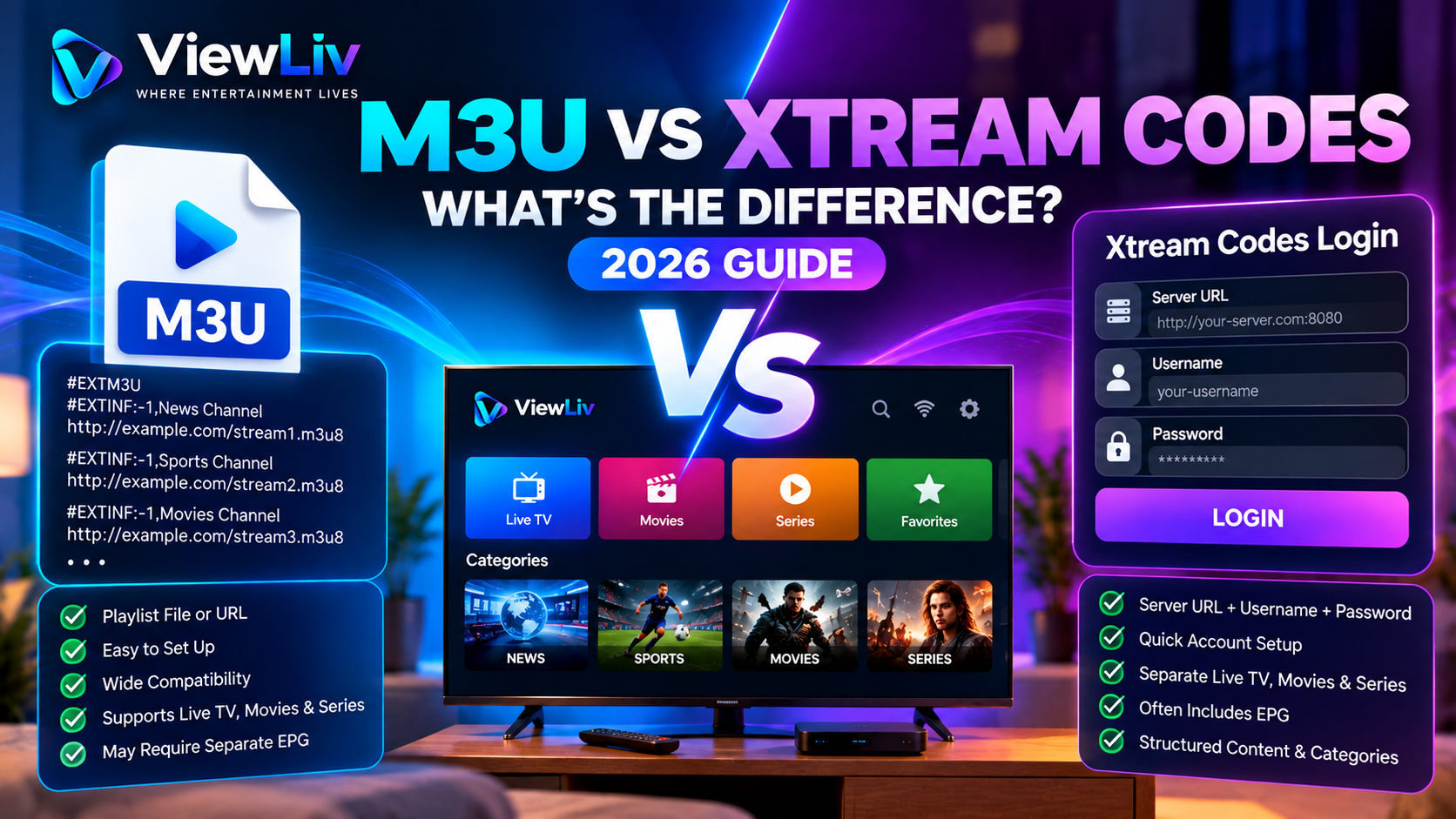
Fix 13: Verify Your M3U or Xtream Codes Connection
Some IPTV players support M3U playlists or Xtream Codes-style logins.
Connection errors can sometimes be mistaken for buffering problems.
M3U Playlist
Check whether the playlist URL is valid, accessible, and correctly configured.
Xtream Codes-Style Login
Verify the server address, username, and password using the information supplied by your authorized service.
Expired access or incorrect credentials may prevent content from loading.
However, changing between M3U and Xtream Codes does not automatically improve streaming performance if both methods access the same underlying media source.
For more information, read our M3U vs Xtream Codes Comparison.
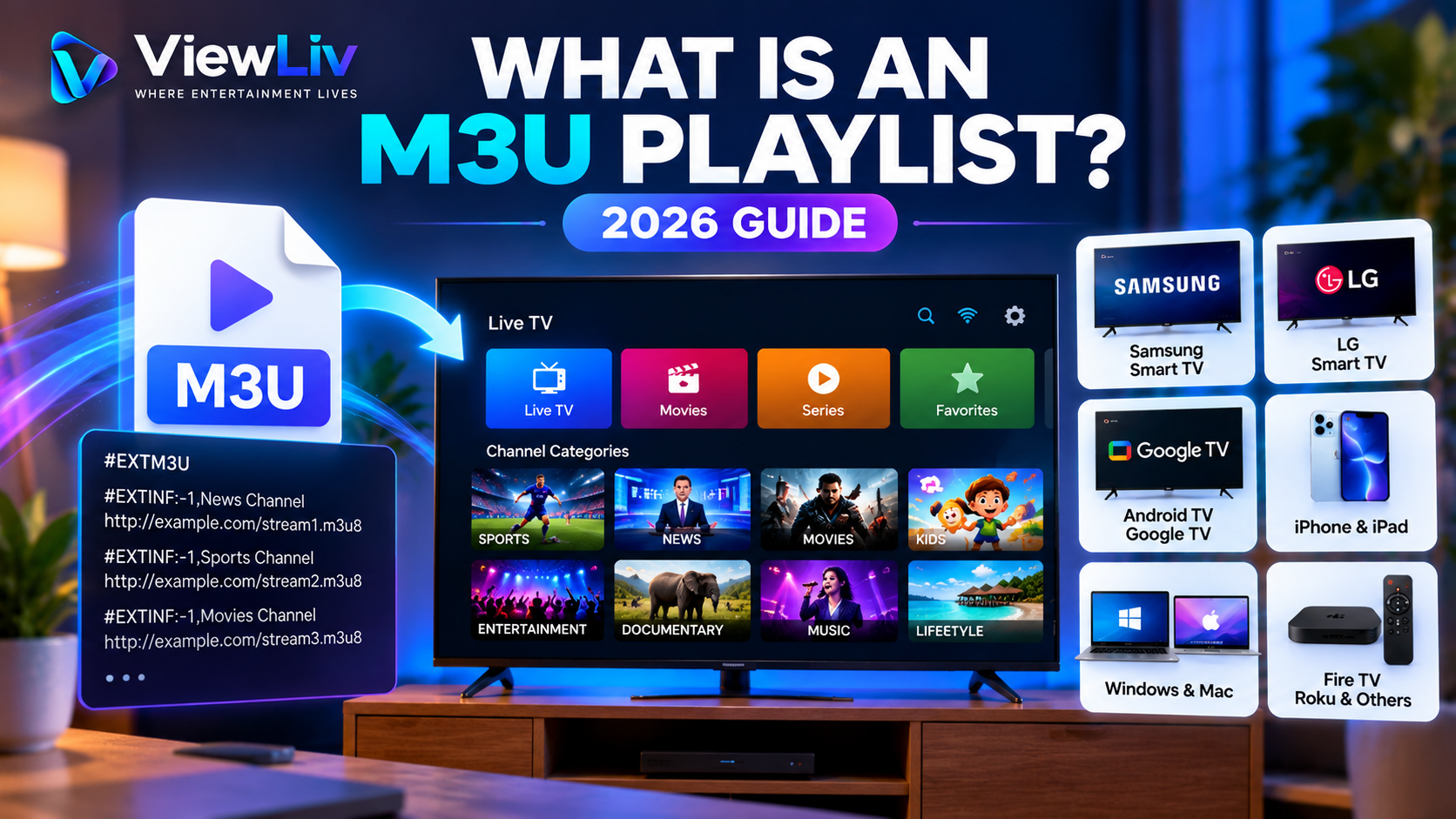
You can also learn about playlist technology in our M3U Playlist Beginner's Guide.
Fix 14: Update Your Smart TV or Streaming Device Software
Operating-system updates may improve stability, security, and media compatibility.
Check your device settings for available system updates.
For example:
Samsung Smart TV
Look for software update options in the television's support or settings menu.
LG Smart TV
Check the software update section in the television's settings.
Android TV and Google TV
Look for system updates under device settings or system information.
Amazon Fire TV
Check the device's software update settings.
Menu names and availability vary by model and software version.
Install official updates and restart the device if required.
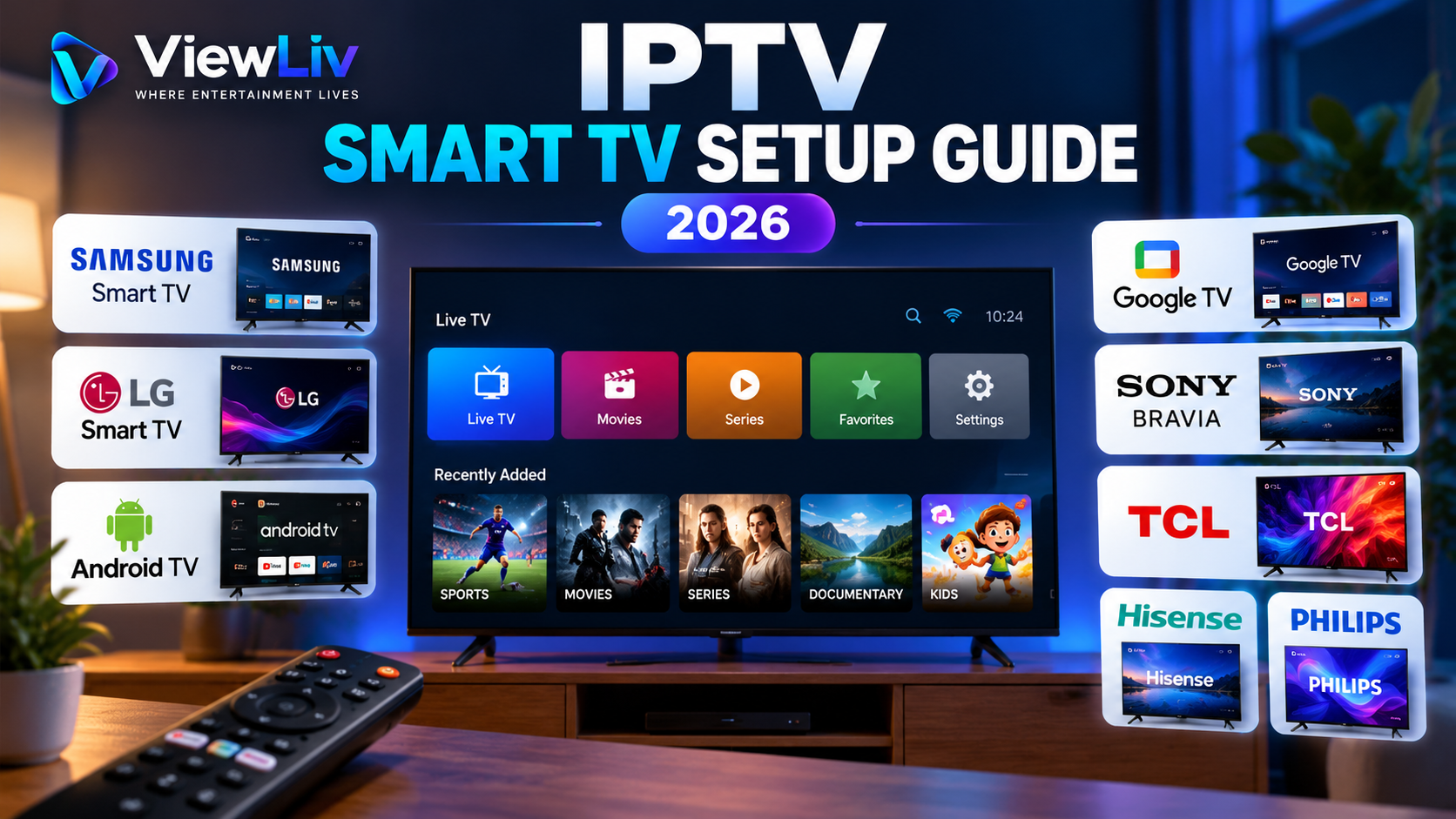
For device-specific setup information, visit our IPTV Smart TV Setup Guide.
Fix 15: Compare Playback on Another Network
Testing another network can help determine whether the problem originates from your home internet connection.
For example, you could temporarily connect a compatible device to a trusted mobile hotspot and test an authorized stream.
If playback works on one network but consistently fails on another, the difference may involve local network settings, internet routing, congestion, or other connection-related factors.
Be mindful of mobile data limits, particularly with high-resolution video.
Do not assume that every network-specific problem is intentional blocking. Several technical explanations are possible.
IPTV Buffering on Samsung Smart TV
If IPTV keeps freezing on a Samsung Smart TV:
- Check your internet connection.
- Restart the television.
- Update the television software.
- Update the compatible streaming application.
- Test a wired network connection if available.
- Check whether other streaming applications work normally.
- Contact the authorized content provider if only its streams are affected.
Older Samsung models may have different application availability and playback capabilities.
IPTV Buffering on LG Smart TV
For LG webOS televisions, begin by checking the network connection and restarting the television.
Next, update webOS and the installed media application.
If Wi-Fi is unstable, compare it with a wired connection where supported.
Check whether the problem affects all video applications or only one source.
If only a particular stream fails, the issue may be outside the television.
IPTV Buffering on Android TV and Google TV
Android TV and Google TV devices may offer additional application management options.
Try:
- Restarting the device.
- Updating the IPTV player.
- Clearing the application's cache.
- Checking available device storage.
- Closing unused applications.
- Updating the operating system.
- Comparing Wi-Fi and Ethernet performance.
Avoid installing unknown optimization utilities that promise guaranteed buffering fixes.
IPTV Buffering on Amazon Fire TV
If a compatible streaming application freezes on Fire TV:
- Restart the Fire TV device.
- Check Wi-Fi signal strength.
- Update the application.
- Clear its cache where supported.
- Check for Fire OS updates.
- Test another authorized stream.
- Review whether the device is overheating or struggling with other apps.
A wired connection may be possible with a compatible Ethernet adapter.
IPTV Buffering on Windows and Mac
Computer playback issues can involve network performance, player configuration, or system resources.
Try updating the media player, closing unnecessary applications, and checking CPU and memory usage.
If the player supports hardware-accelerated decoding, compare playback with the appropriate setting enabled or disabled.
You can also test a different supported video format or authorized media source to determine whether the issue is codec-related.
IPTV Freezing vs Buffering: What's the Difference?
Although people often use the terms interchangeably, buffering and freezing can describe different symptoms.
Buffering usually means the player is waiting for additional media data.
Freezing means the displayed picture stops changing.
A frozen picture may result from buffering, but it can also be caused by decoding errors, application crashes, or device performance problems.
For example, if the audio continues while the video freezes, a video decoding or rendering issue may be worth investigating.
If both audio and video pause while a loading indicator appears, network or source delivery issues may be more likely.
These symptoms provide clues, but they do not prove a single cause.
Quick IPTV Buffering Troubleshooting Checklist
If you want a simple troubleshooting sequence, follow these steps in order:
- Test whether other streaming services work normally.
- Check your internet speed and stability.
- Restart the streaming application and device.
- Restart your router if appropriate.
- Compare Wi-Fi with Ethernet.
- Pause unnecessary downloads and uploads.
- Update your media player.
- Clear the application cache if supported.
- Test a different authorized stream.
- Check device software updates.
- Review supported buffer or quality settings.
- Contact the provider if the issue appears source-specific.
Change one thing at a time so you can identify which adjustment helps.
Can a VPN Fix IPTV Buffering?
A VPN is not a guaranteed solution for buffering.
A VPN changes how network traffic is routed and may introduce additional latency or reduce available speed.
In some situations, a different network route may perform better. In others, VPN use may make playback worse.
Before considering a VPN, test your ordinary connection and investigate Wi-Fi, device, and source-related problems.
If you use a VPN for legitimate privacy purposes, choose a reputable service and follow applicable laws and service terms.
Avoid assuming that a VPN can repair unavailable streams, overloaded servers, or incompatible video formats.
Can You Completely Eliminate IPTV Buffering?
No streaming setup can guarantee zero buffering under every condition.
Internet traffic, network performance, source availability, and device behavior can change.
However, you can reduce many common interruptions by:
- Using a stable connection.
- Maintaining updated software.
- Choosing compatible playback formats.
- Avoiding unnecessary network congestion.
- Using reliable, authorized media sources.
- Identifying whether problems are local or provider-side.
The goal is consistent, reliable playback rather than an unrealistic promise of perfect performance.
Frequently Asked Questions About IPTV Buffering
Why does my IPTV buffer even with fast internet?
A fast speed test does not rule out Wi-Fi instability, packet loss, server congestion, network routing problems, or device limitations.
What internet speed is best for IPTV?
It depends on the stream. As a starting point, around 10–15 Mbps of available bandwidth may be suitable for many 1080p streams, while 4K often benefits from 25 Mbps or more. Actual requirements vary.
Does Ethernet reduce IPTV buffering?
Ethernet can improve local network stability by avoiding Wi-Fi interference, but it cannot resolve every buffering cause.
Why does IPTV freeze at night?
Evening congestion on your home network, ISP network, or streaming provider infrastructure may contribute. Compare performance at different times to narrow down the cause.
Does clearing the IPTV cache help?
It can help when temporary application data is causing problems, but it will not fix an overloaded server or insufficient bandwidth.
Can an outdated IPTV player cause freezing?
Yes. Software bugs, compatibility issues, or outdated decoding components can affect playback.
Why does only one IPTV channel buffer?
The individual source may be experiencing technical problems, or its stream may require different playback capabilities.
Does switching from M3U to Xtream Codes stop buffering?
Not necessarily. If both methods access the same underlying stream, the connection method alone is unlikely to fix source or network problems.
Is a VPN necessary for IPTV?
No. VPNs are not inherently required for IPTV technology. Their usefulness depends on the circumstances, and they may improve or worsen network performance.
Can an old Smart TV cause IPTV buffering?
Yes. Older devices may have limited processing power, memory, or codec support, which can affect playback.
Should I increase my IPTV buffer size?
Only if your player supports that setting and testing shows an improvement. Larger buffers may help with short interruptions but can increase playback delay.
What should I do if nothing fixes the buffering?
Document the affected streams, times, devices, and network conditions, then contact your authorized content provider or internet service provider as appropriate.
Final Thoughts
IPTV buffering and freezing can have many causes, from weak Wi-Fi and network congestion to device limitations and unavailable streaming sources.
The most effective troubleshooting approach is to identify where the problem occurs rather than changing several settings at once.
Start with your internet connection, restart your device, compare Wi-Fi and Ethernet, update your media player, and test different authorized streams.
If the problem affects only one source, your content provider may need to investigate it.
With a stable network, compatible equipment, and properly maintained software, many common playback interruptions can be reduced.
For more helpful tutorials, explore the ViewLiv Blog.
Published by ViewLiv — Where Entertainment Lives.
Disclaimer: This article is for general educational and troubleshooting purposes. ViewLiv recommends accessing media only through properly authorized services. Actual playback performance depends on network conditions, device compatibility, and content availability.