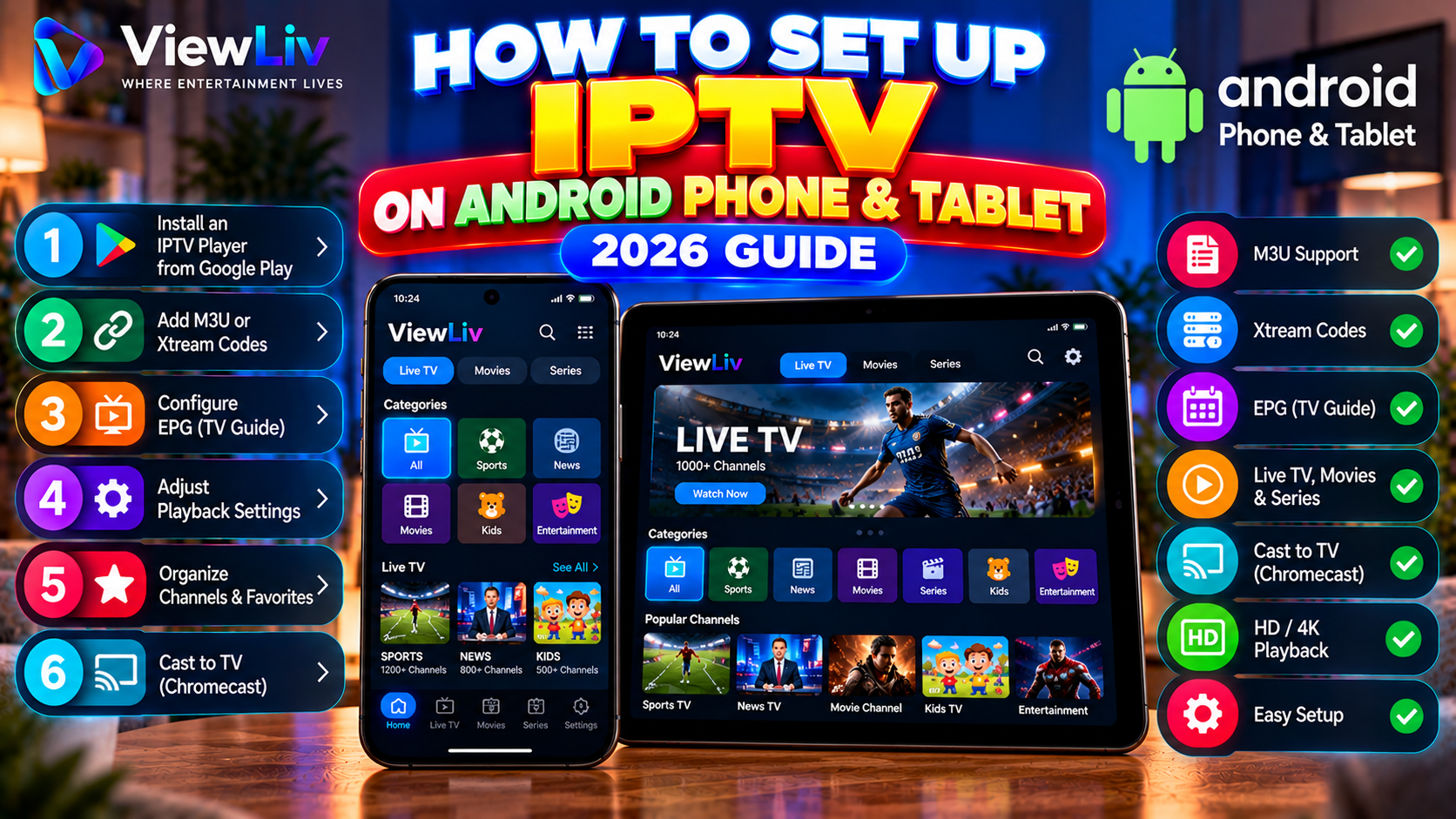
Android smartphones and tablets provide a convenient way to watch authorized internet television and compatible streaming content at home or while traveling.
Unlike traditional television receivers, Android devices can run media applications that support network streams, M3U playlists, and account-based IPTV connections.
However, choosing a suitable IPTV player and configuring it correctly are important for reliable playback.
In this 2026 step-by-step guide, you'll learn how to set up IPTV on Android phones and tablets, install a compatible player from Google Play, add an M3U playlist or Xtream Codes-style account, configure the Electronic Program Guide (EPG), and troubleshoot common problems.
What Is IPTV on Android?
IPTV stands for Internet Protocol Television. It refers to television and video delivered using internet-based networks.
On an Android phone or tablet, compatible media players can open authorized internet streams and organize available channels or media.
Depending on the application, features may include:
- Live television playback.
- M3U and M3U8 playlists.
- Xtream Codes-style login.
- Electronic Program Guides.
- Channel favorites and categories.
- Movies and series sections.
- Subtitles and audio-track selection.
- Picture-in-Picture on supported devices.
- Casting to compatible televisions.
Important: IPTV media players do not necessarily provide television channels or subscriptions. You must supply your own properly authorized media source.
For more information, read What Is IPTV? How It Works, Benefits & Legal Considerations.
Can You Watch IPTV on Android Phones and Tablets?
Yes. Compatible Android smartphones and tablets can play authorized IPTV streams using suitable applications.
However, compatibility depends on:
- Android operating-system version.
- Device processor and memory.
- Available media codecs.
- Application requirements.
- Internet connection.
- Streaming source format.
Not every Android IPTV application supports every playlist or login method.
Some players are designed for touchscreens, while others are intended for Android TV and remote-control navigation.
For phones and tablets, choose an application specifically compatible with mobile Android.
What You Need Before Setting Up IPTV
Prepare the following:
- An Android smartphone or tablet.
- A stable Wi-Fi or mobile internet connection.
- Access to Google Play or another trusted application source.
- A compatible IPTV media player.
- An authorized media playlist or streaming account.
- An M3U URL or supported account credentials.
- EPG information, if provided by your authorized source.
Keep private account information secure.
Avoid publishing playlist URLs containing passwords, tokens, or other access credentials.
Step 1: Connect Your Android Device to the Internet
Before installing an IPTV player, confirm that your Android phone or tablet has a working internet connection.
Connect Using Wi-Fi
- Open Settings.
- Navigate to Network & Internet, Connections, or the equivalent menu.
- Select Wi-Fi.
- Choose your wireless network.
- Enter the password.
- Confirm that the device is connected.
The exact menu labels depend on the device manufacturer and Android version.
Use Mobile Data
Android phones and cellular-capable tablets may also stream over mobile data.
However, video streaming can consume substantial data.
For example, a continuous 5 Mbps stream uses approximately 2.25 GB per hour before accounting for variations in bitrate and other network traffic.
Check your mobile plan before extended viewing.
Test the Connection
Open another trusted streaming application or website.
If multiple services cannot connect, investigate your network before configuring IPTV.
Step 2: Choose a Compatible IPTV Player for Android
Several media players support compatible IPTV streams on Android smartphones and tablets.
VLC for Android
VLC is a free, open-source media player.
It supports many video formats, M3U playlists, and network streams.
VLC is suitable for users who want straightforward media playback without a dedicated IPTV account-management interface.
Official website: https://www.videolan.org/vlc/
IPTV Smarters Applications
Some IPTV Smarters-branded applications provide interfaces for live television, movies, series, and account-based media connections.
Depending on the version, supported features may include M3U playlists, Xtream Codes-style login, EPG, and favorites.
Because multiple similarly named applications exist, verify the developer and current app listing before installing.
Kodi for Android
Kodi is an open-source media center that supports compatible network media.
With the IPTV Simple Client add-on, it can organize M3U playlists and EPG information.
Kodi is more configurable than many simple media players but may require additional setup.
Official website: https://kodi.tv/
Which IPTV Player Should You Choose?
Choose VLC if you primarily need M3U or individual network stream playback.
Consider a verified mobile IPTV player if you need account-based login, channel categories, or a television-guide interface.
Choose Kodi if you prefer a customizable media-center environment.
Note: TiviMate is primarily designed for Android TV, not touchscreen Android phones and tablets.
For a broader comparison, read Best IPTV Players for Smart TV, Android TV, Fire TV & Windows.
Step 3: Install an IPTV Player from Google Play
For most Android users, Google Play is the simplest installation method.
Installation Instructions
- Open Google Play on your Android device.
- Tap the search bar.
- Enter the name of your chosen IPTV player.
- Review the search results.
- Select the correct application.
- Verify the developer.
- Review compatibility, permissions, and pricing.
- Tap Install.
- Wait for the installation to finish.
- Open the application.
Some applications are free to download but require payment for advanced features.
Remember: Paying for an IPTV media player does not automatically include television channels or movies.
Avoid modified APK files and applications from unknown websites.
Step 4: Set Up IPTV Using an M3U Playlist
M3U is a text-based playlist format containing references to media resources.
Many Android media players support M3U playlists.
M3U Setup Instructions
- Open your IPTV player.
- Find Add Playlist, Add Source, or Open Network Stream.
- Choose the M3U playlist option.
- Enter your authorized M3U playlist URL.
- Add a recognizable playlist name if requested.
- Save the configuration.
- Wait for the playlist to load.
- Select an available authorized stream to test playback.
Some applications also support importing locally stored M3U files.
Example M3U Playlist
A simplified playlist may look like this:
#EXTM3U
#EXTINF:-1,Example Channel
https://example.com/authorized-stream.m3u8
This is a format example, not an active television channel.
For a detailed explanation, read What Is an M3U Playlist? How It Works & How to Use It.
Step 5: Set Up IPTV Using Xtream Codes
Some specialized Android IPTV players support Xtream Codes-style connections.
This method commonly requires:
- Server URL.
- Username.
- Password.
Xtream Codes Setup Instructions
- Open a compatible IPTV player.
- Select Add Account or Add Playlist.
- Choose Xtream Codes-style login.
- Enter the server URL provided by your authorized service.
- Enter your username.
- Enter your password.
- Add a profile name if requested.
- Save the configuration.
- Wait for the application to retrieve the available media.
Common Login Mistakes
- Incorrect server address.
- Misspelled username.
- Wrong password.
- Expired account.
- Unnecessary spaces.
- Unsupported login format.
If the details are correct but the connection fails, contact the authorized provider.
Learn more in M3U vs Xtream Codes: What's the Difference?.
Step 6: Configure the Electronic Program Guide
An Electronic Program Guide (EPG) displays television schedules and programme information.
Some authorized media sources include guide data automatically.
Others provide a separate EPG URL.
EPG Setup Instructions
- Open the IPTV player's settings.
- Find the EPG or TV Guide section.
- Check whether guide information is already configured.
- Enter the authorized EPG URL if required and supported.
- Save the settings.
- Refresh the guide.
- Check the displayed schedules.
Why Is My EPG Empty?
Possible causes include:
- Missing guide data.
- Incorrect EPG source.
- Channel mapping problems.
- Temporary source errors.
- Application limitations.
If programme times are incorrect, check the device's time-zone settings.
Step 7: Organize Channels and Favorites
Many dedicated IPTV players offer options for organizing available media.
Depending on the application, you may be able to:
- Mark favorite channels.
- Hide unused categories.
- Search for channels.
- Manage multiple playlists.
- Configure parental controls.
- View recently watched items.
- Customize channel ordering.
A touchscreen-friendly interface is especially important on smartphones.
On tablets, larger screens may provide more room for channel lists and programme guides.
Step 8: Cast IPTV from Android to a TV
Some Android applications support casting to compatible televisions or streaming receivers.
However, not every IPTV player supports Google Cast or other external playback methods.
How to Cast a Compatible Stream
- Connect your Android device and compatible casting receiver to the appropriate network.
- Open a media application with casting support.
- Start an authorized stream.
- Tap the Cast control if available.
- Select the receiving device.
- Wait for playback to begin.
What If Casting Does Not Work?
Check whether:
- The receiving device supports the casting method.
- Both devices have appropriate network connectivity.
- The application supports casting.
- The media format is compatible.
- The content source permits external playback.
Some applications and protected media sources restrict casting.
Step 9: Adjust Video and Audio Settings
After configuring the media source, review the player's available playback options.
Video Quality
Select a stream quality appropriate for your network.
Higher bitrates require more bandwidth and may consume more mobile data.
Hardware Decoding
Some applications allow hardware or software video decoding.
Hardware decoding can be efficient when the device supports the media codec.
Aspect Ratio
Choose an option that preserves the original video proportions when possible.
Audio Tracks
Select an available audio language or output format.
Subtitles
Enable subtitles where supported.
Picture-in-Picture
Some Android devices and applications support Picture-in-Picture playback.
Availability depends on the operating system, application, and media source.
Step 10: Test IPTV Playback
Once configuration is complete:
- Open an authorized stream.
- Confirm that video appears.
- Check the audio.
- Test another permitted stream.
- Open the EPG if available.
- Check subtitle support.
- Test casting if supported.
- Observe playback stability.
If everything works, your basic IPTV setup is complete.
IPTV Not Working on Android? Common Problems and Fixes
If the application is not working, identify the symptom before changing settings.
Problem 1: IPTV App Won't Open
Restart the device and check for application updates.
Problem 2: M3U Playlist Not Loading
Verify the playlist URL and internet connection.
Problem 3: Xtream Codes Login Failed
Check the server URL, username, password, and account status.
Problem 4: IPTV Shows a Black Screen
Test another authorized stream and check format compatibility.
Problem 5: IPTV Has No Sound
Check volume, connected audio devices, and available audio tracks.
Problem 6: EPG Not Working
Verify the guide source and time-zone settings.
Problem 7: Channels Missing
Refresh the playlist and check for hidden categories.
Problem 8: IPTV App Keeps Crashing
Update the application, restart the device, and check available storage.
Problem 9: IPTV Keeps Buffering
Test network stability and compare other authorized streams.
Problem 10: Casting Not Working
Check application support, network connectivity, and receiver compatibility.
For more troubleshooting advice, read IPTV Not Working? 15 Common Problems and How to Fix Them.
How to Fix IPTV Buffering on Android
Buffering occurs when the player cannot receive or process video data quickly enough to maintain uninterrupted playback.
Common causes include:
- Weak Wi-Fi.
- Mobile network congestion.
- Source-server instability.
- High video bitrate.
- Device processing limitations.
- Application playback issues.
Recommended Fixes
- Test your internet connection.
- Move closer to the Wi-Fi router.
- Switch to a more stable network if available.
- Close unnecessary network-heavy applications.
- Update your IPTV player.
- Restart the device.
- Test another authorized stream.
- Select a lower stream quality if available.
No media player can guarantee uninterrupted streaming under every network condition.
For a complete troubleshooting guide, read How to Fix IPTV Buffering and Freezing.
How to Clear IPTV App Cache on Android
Clearing temporary application files can resolve some startup or performance problems.
On many Android devices:
- Open Settings.
- Select Apps.
- Find your IPTV player.
- Open Storage or Storage & Cache.
- Tap Clear Cache, if available.
- Restart the application.
Menu names vary by Android version and manufacturer.
Warning: Clear Cache and Clear Data are different operations.
Clearing app data may remove saved playlists, accounts, and preferences.
Android Phone vs Android Tablet for IPTV
Both Android phones and tablets can support compatible IPTV applications.
| Feature | Android Phone | Android Tablet | |---|---|---| | Portability | Excellent | Good | | Screen size | Smaller | Larger | | Touch navigation | Yes | Yes | | M3U support | Player-dependent | Player-dependent | | Xtream Codes login | Player-dependent | Player-dependent | | EPG support | Player-dependent | Player-dependent | | Casting | Supported configurations | Supported configurations | | Mobile data | Most phones | Cellular-capable tablets |
Phones are convenient for portable viewing.
Tablets can provide a more comfortable experience for longer sessions because of their larger screens.
Android vs iPhone for IPTV: Which Is Better?
Both Android and iPhone support compatible IPTV media players.
The main differences involve application availability, interface design, and operating-system features.
Android users commonly install applications through Google Play.
iPhone users generally use Apple's App Store.
Neither platform guarantees better streaming performance.
Playback depends on the media source, network connection, application, and hardware.
For Apple-specific instructions, read How to Set Up IPTV on iPhone & iPad.
Is IPTV Legal on Android Phones and Tablets?
IPTV technology can be used for legitimate activities, including:
- Licensed streaming services.
- Authorized television broadcasts.
- Personal network media.
- Publicly distributed streams with appropriate permissions.
However, installing a media player does not grant permission to access copyrighted television channels, movies, or programmes without authorization.
Users should obtain media from properly authorized sources and follow applicable laws and service terms.
Frequently Asked Questions
Can I install IPTV on an Android phone?
Yes. Compatible Android smartphones can run media players capable of playing authorized IPTV streams.
Can I watch IPTV on an Android tablet?
Yes. Compatible Android tablets support suitable media players and authorized streaming sources.
What is the best IPTV player for Android mobile?
The best option depends on your preferred features, supported connection formats, and the applications available for your device.
Is IPTV free on Android?
Some media players are free, while others offer paid features. Access to particular content may require a separate authorized subscription.
Can I use an M3U playlist on Android?
Yes, if your installed media player supports M3U playlists.
Can I use Xtream Codes on Android?
Some specialized Android IPTV players support Xtream Codes-style connections.
Does VLC support IPTV on Android?
VLC supports compatible network streams and playlist formats, including M3U.
Can I cast IPTV from Android to a television?
Some applications support casting to compatible receivers, subject to media-format and content restrictions.
Can I use IPTV with mobile data?
Yes. Video streaming can consume significant mobile data, so check your plan.
Why is IPTV buffering on Android?
Possible causes include weak Wi-Fi, mobile network congestion, source problems, or high streaming bitrate.
Why does IPTV show a black screen?
The stream may be unavailable or use a media format that the player cannot decode correctly.
Can I install TiviMate on an Android phone?
TiviMate is primarily designed for Android TV and is not optimized for touchscreen phones.
Can I use the same IPTV account on my phone and tablet?
That depends on the authorized service's device limits and account terms.
Do I need a VPN for IPTV on Android?
A VPN is not inherently required for IPTV playback and does not fix incorrect credentials or unavailable streams.
Does an IPTV player include television channels?
Usually not. Most IPTV media players require users to provide their own authorized media sources.
Final Thoughts
Setting up IPTV on an Android phone or tablet in 2026 is generally straightforward when you use a compatible media player and have the correct authorized connection details.
Start by connecting your device to the internet and installing a trusted media player.
Next, add your M3U playlist or supported Xtream Codes-style account, configure the EPG, and organize your channels.
If the application supports casting, you may also be able to watch compatible streams on a larger television.
For more helpful tutorials, explore the ViewLiv Blog, including our guides to IPTV on iPhone & iPad, Best IPTV Players, and IPTV Troubleshooting.
Published by ViewLiv — Where Entertainment Lives.
Disclaimer: This article is for educational purposes. ViewLiv recommends using trusted applications and properly authorized streaming sources. Application availability, compatibility, and features vary by device, region, and software version.