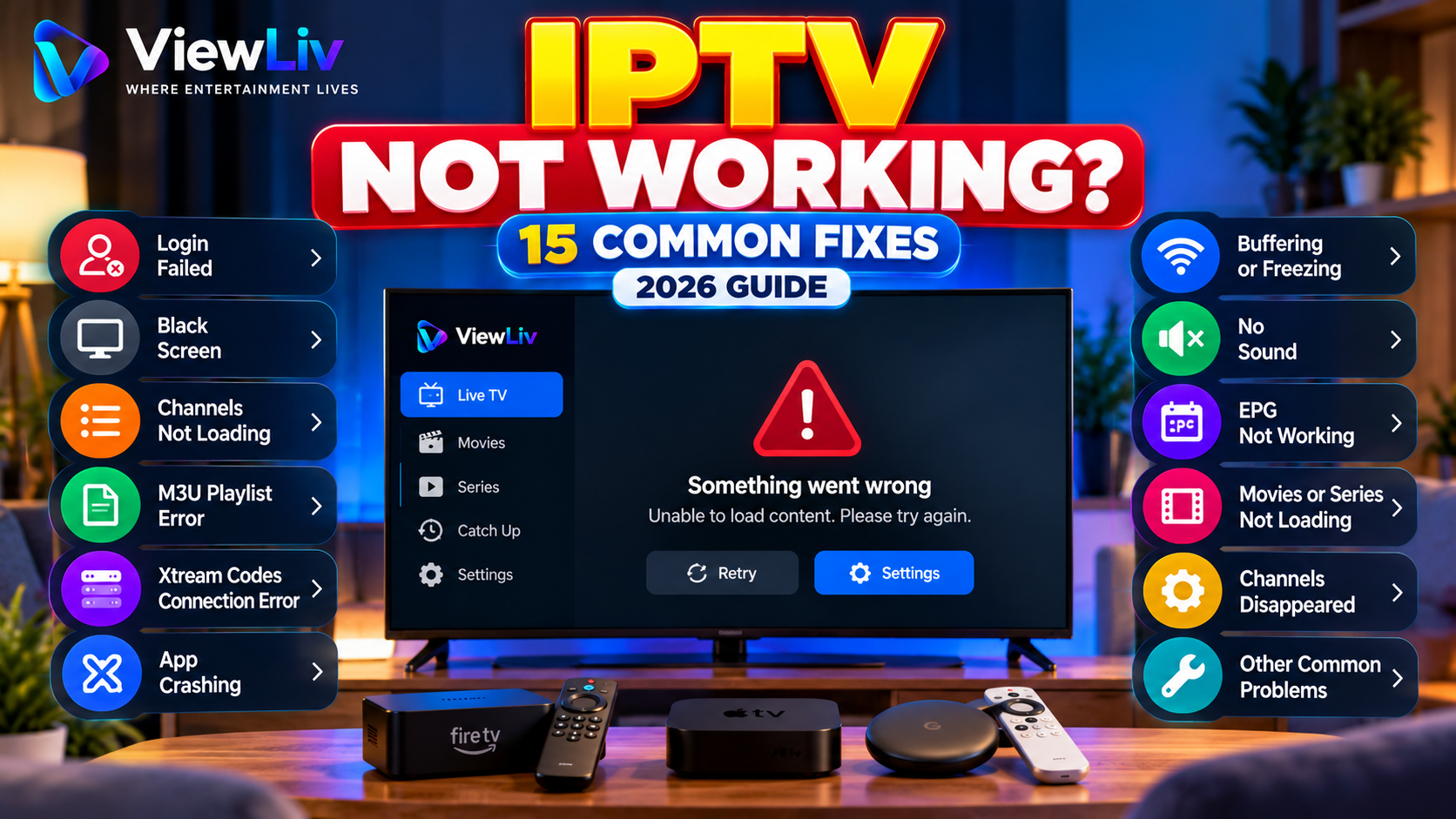
IPTV not working on your Smart TV, Android TV, Google TV, Fire TV, smartphone, or computer?
You might see a black screen, an invalid login message, a playlist that refuses to load, missing channels, or an application that suddenly stops responding.
These problems can be frustrating, especially when the same application worked normally before.
Fortunately, many IPTV playback and connection problems can be diagnosed with straightforward troubleshooting.
In this 2026 guide, we'll cover 15 common IPTV problems and how to fix them, including login failures, server errors, M3U playlist issues, Xtream Codes connection problems, EPG errors, application crashes, and device compatibility issues.
The instructions apply to compatible IPTV media players accessing properly authorized streaming content.
Why Is IPTV Not Working?
IPTV depends on several components working together.
These include your internet connection, home network, streaming device, media player, authentication details, and the server delivering the media.
If any component fails, playback may stop working.
Common causes include:
- Internet connection problems.
- Incorrect account credentials.
- Expired or unavailable service access.
- Invalid M3U playlist URLs.
- Incorrect server addresses.
- Unavailable media sources.
- Outdated streaming applications.
- Unsupported video or audio formats.
- Device memory limitations.
- Incorrect EPG configuration.
- Temporary server outages.
- Application software bugs.
The most effective solution depends on the symptoms.
For example, a login error requires different troubleshooting from a video that plays sound but shows no picture.
IPTV Troubleshooting: Quick Problem and Solution Table
| Problem | Possible cause | First thing to try | |---|---|---| | IPTV app not opening | Software issue | Restart the app and device | | IPTV login failed | Incorrect credentials | Verify account details | | Black screen | Source or decoder issue | Test another authorized stream | | Channels not loading | Playlist or server issue | Check connection details | | M3U playlist error | Invalid or inaccessible URL | Verify the playlist source | | Xtream Codes error | Incorrect server or account | Check server URL and credentials | | IPTV keeps buffering | Network or source instability | Test internet stability | | No sound | Audio format or output issue | Check volume and audio settings | | EPG not working | Missing or mismatched guide data | Refresh EPG information | | Movies not loading | Source or codec issue | Test another available title | | App crashing | Software or memory issue | Update the app | | Connection timeout | Network or server problem | Test network and service availability | | Channels disappeared | Playlist or account change | Refresh the authorized playlist | | Video freezing | Network or decoding problem | Compare another stream | | IPTV stopped after an update | Compatibility or configuration issue | Check app settings and release notes |
Use this table to identify the most relevant section below.
Fix 1: IPTV App Not Opening
If your IPTV application does not open, closes immediately, or becomes stuck on its startup screen, the problem may be related to the application or device.
Possible Causes
- Temporary application failure.
- Outdated software.
- Insufficient device memory.
- Corrupted temporary files.
- Operating-system compatibility issues.
How to Fix It
- Close the application completely.
- Restart your Smart TV or streaming device.
- Check for application updates.
- Check for operating-system updates.
- Clear the application cache if supported.
- Open the application again.
On Android-based devices, cache settings are commonly found under the Apps section.
Avoid selecting Clear Data unless you have backed up your login information and saved profiles.
If the problem began after an update, check the application's official support information for known compatibility issues.
Fix 2: IPTV Login Failed or Invalid Credentials
An invalid username or password message usually indicates that the application cannot authenticate with the configured service.
Possible Causes
- Incorrect username.
- Incorrect password.
- Wrong server address.
- Expired account access.
- Temporary authentication-server problem.
- Unsupported login method.
How to Fix It
First, verify the connection details supplied by your authorized content provider.
Check for accidental spaces, missing characters, or incorrect capitalization.
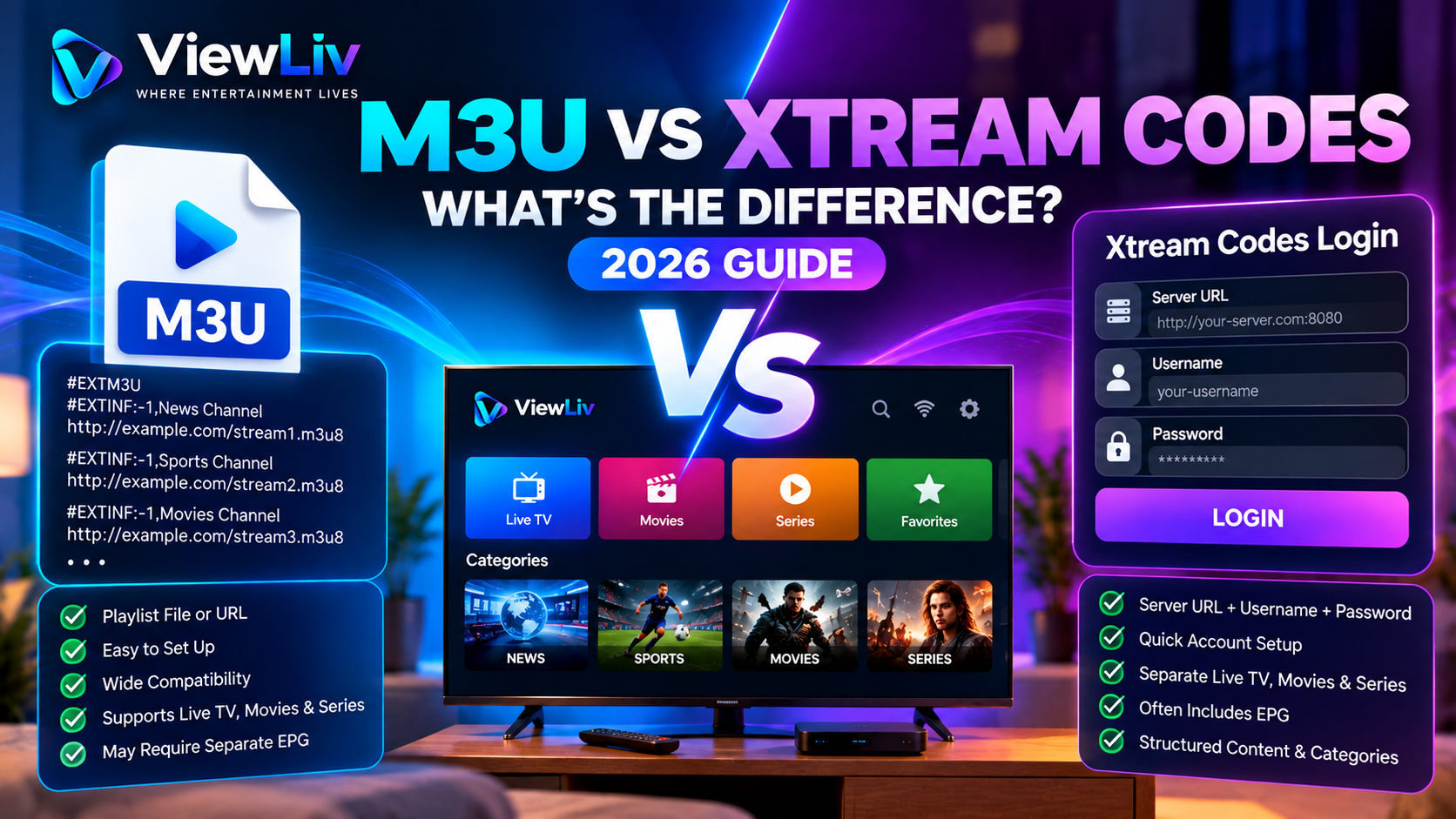
If your application supports Xtream Codes-style login, confirm that you entered the correct server URL, username, and password.
Do not assume that an M3U playlist URL can be entered directly into an Xtream Codes login form.
These connection methods are different.
For a detailed explanation, read our M3U vs Xtream Codes Comparison.
If your details appear correct but authentication still fails, contact the service provider.
Fix 3: IPTV Shows a Black Screen
A black screen is one of the most common IPTV playback complaints.
Sometimes the player opens normally and displays the channel list, but selecting a channel produces no picture.
Possible Causes
- Unavailable stream.
- Unsupported video codec.
- Video decoding failure.
- Application rendering problem.
- Temporary server issue.
- Incompatible player configuration.
How to Fix It
Start by selecting another authorized stream.
If other streams work, the issue may be specific to the original source.
If every stream displays a black screen, restart the player and check for software updates.
If your player supports different decoding modes, compare the available options.
Some players offer hardware and software decoding settings, although changing these options can affect performance.
Important: If audio plays but the picture remains black, a video decoding or rendering problem may be more likely than a complete network failure.
Fix 4: IPTV Channels Not Loading
Sometimes the application opens successfully but does not display any channels.
Possible Causes
- Playlist unavailable.
- Incorrect connection details.
- Network problem.
- Expired account access.
- Empty or invalid playlist.
- Server temporarily unavailable.
How to Fix It
- Confirm that your internet connection works.
- Check your playlist URL or account credentials.
- Refresh the playlist if the application supports it.
- Restart the application.
- Check whether the service is experiencing an outage.
- Contact your provider if necessary.
If you use a locally stored M3U file, check whether it contains valid media references.
A playlist can load successfully while individual streams remain unavailable.
Fix 5: M3U Playlist Not Working
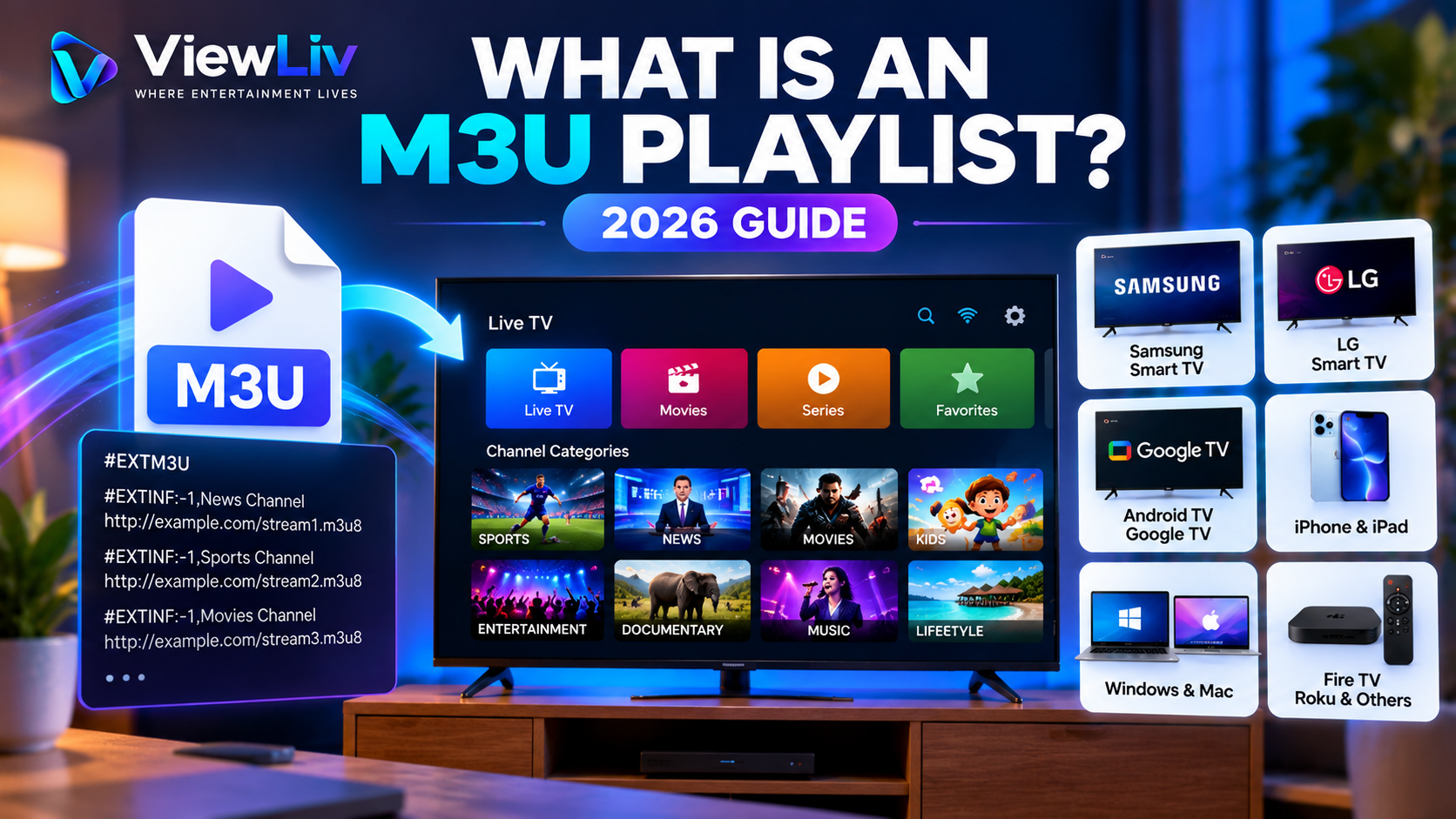
An M3U playlist contains references to media files or streams.
If the player cannot retrieve or interpret the playlist, it may display an error.
Common M3U Errors
- Invalid playlist URL.
- Playlist download failed.
- Unsupported playlist format.
- Empty playlist.
- Network connection failed.
- Access denied.
How to Fix It
Check that the playlist address is complete and correctly entered.
If you have permission to inspect the playlist, verify that it contains properly formatted entries.
A basic extended M3U playlist begins with:
#EXTM3U
Depending on the playlist, entries may also include metadata and media URLs.
If the playlist requires authorization, verify that your access remains valid.
Avoid sharing private playlist links publicly because some contain sensitive tokens or credentials.
For more details, see our What Is an M3U Playlist? Complete Guide.
Fix 6: Xtream Codes Connection Error
Xtream Codes-style login is supported by some IPTV media players.
A connection error can occur when the application cannot communicate with the configured service.
Possible Causes
- Incorrect server URL.
- Invalid username or password.
- Server unavailable.
- Network timeout.
- Account restrictions.
- API compatibility problem.
How to Fix It
Verify the three primary login fields:
Server URL: The address supplied by your authorized service.
Username: Your account username.
Password: Your account password.
Make sure the server URL uses the correct scheme, host, and port if one is required.
Do not add or remove URL components unless your provider's documentation instructs you to do so.
If the player supports multiple login methods, choose the method your provider actually supports.
If the server remains unreachable, contact the provider rather than repeatedly changing unrelated settings.
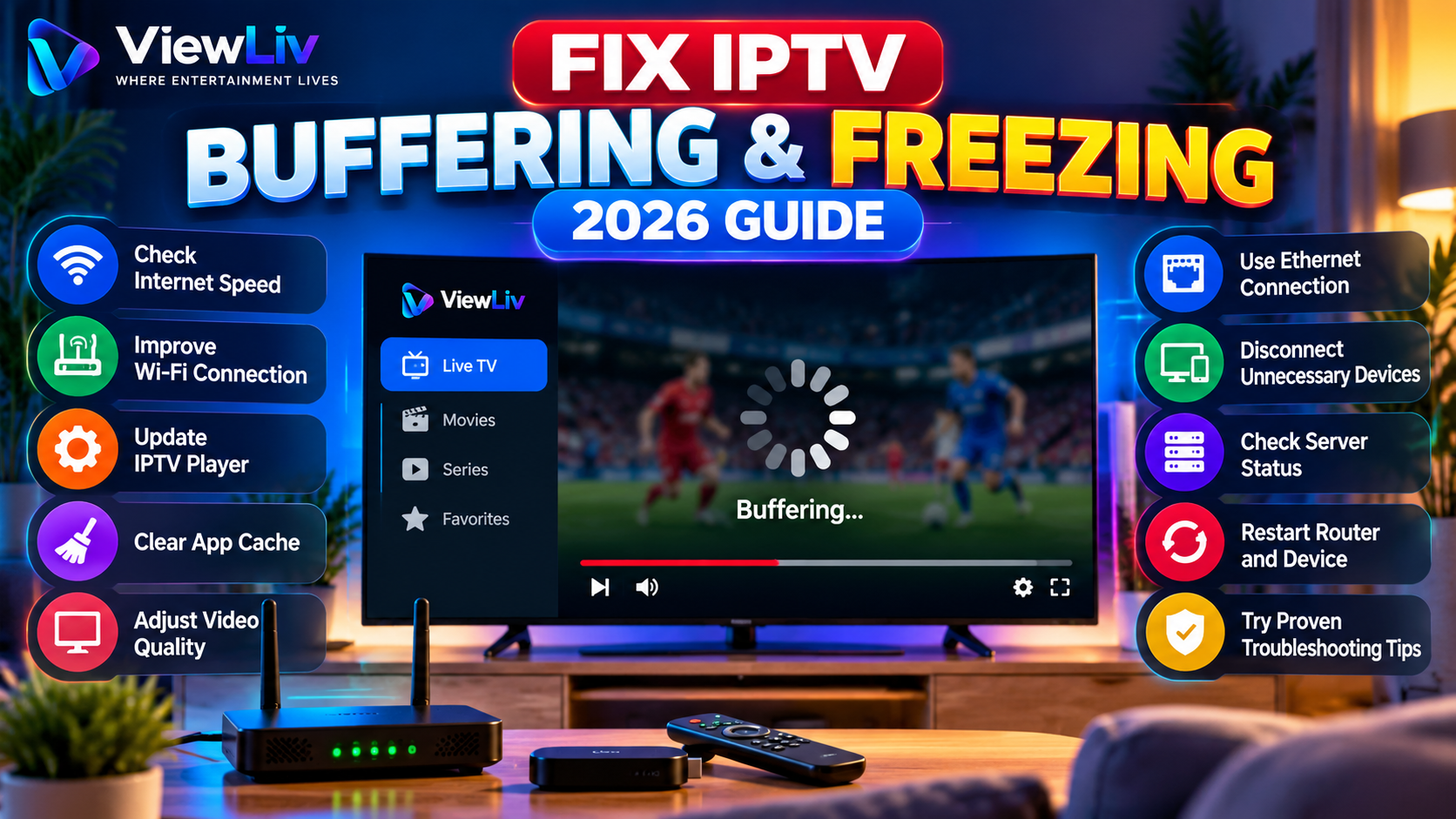
Fix 7: IPTV Keeps Buffering or Freezing
Buffering occurs when the player cannot receive or process video data quickly enough to maintain uninterrupted playback.
Common causes include unstable Wi-Fi, insufficient available bandwidth, server congestion, or device limitations.
How to Fix It
Try these steps:
- Test your internet connection.
- Restart your router and streaming device.
- Compare Wi-Fi with Ethernet.
- Pause unnecessary downloads.
- Update your media player.
- Test a lower video quality if available.
- Check whether only one stream is affected.
Connection stability matters as much as maximum download speed.
For a more detailed troubleshooting walkthrough, read our How to Fix IPTV Buffering and Freezing Guide.
Fix 8: IPTV Has Picture but No Sound
If the video plays but you cannot hear anything, the problem may involve audio settings or format compatibility.
Possible Causes
- Muted television or application.
- Incorrect audio output.
- Unsupported audio codec.
- Incorrect audio track.
- External speaker connection problem.
- Source audio issue.
How to Fix It
First, check the volume and mute settings.
If you use a soundbar, receiver, or Bluetooth audio device, confirm that the correct output is selected.
Next, check whether your player supports selecting an alternative audio track.
If the problem affects only one stream, the source may have an audio issue.
If all streaming applications have no sound, investigate the television's system audio settings.
Fix 9: IPTV EPG Not Working
An Electronic Program Guide, or EPG, displays channel schedules and program information.
Some IPTV players support EPG information supplied by a provider or through a separate guide source.
Common EPG Problems
- No program information.
- Incorrect channel schedules.
- Wrong time zone.
- EPG not updating.
- Channel names not matching guide entries.
How to Fix It
Check whether your authorized service provides EPG data.
If your application supports manual EPG configuration, verify that the guide source is correct.
Refresh the guide information if the player offers that option.
Check your device's date, time, and time-zone settings.
If the EPG displays information for the wrong channels, the channel identifiers may not match the guide data.
An EPG issue does not necessarily mean the video streams themselves are unavailable.
Fix 10: IPTV Movies or Series Not Loading
Some IPTV players organize live television, movies, and series into separate categories.
A problem affecting one category does not always affect the others.
Possible Causes
- Unavailable media file.
- Unsupported codec.
- Incorrect media metadata.
- Service-side problem.
- Account access limitations.
- Application compatibility issue.
How to Fix It
Try another authorized movie or episode.
If only one title fails, the source may be unavailable.
If all movies fail but live television works, investigate whether the service uses different delivery methods for on-demand media.
Update the player and check device compatibility.
If your service uses account-based access, verify that the account includes the relevant media category.
Fix 11: IPTV App Keeps Crashing
An application crash occurs when the player unexpectedly closes or stops responding.
Possible Causes
- Application bugs.
- Insufficient memory.
- Corrupted cached data.
- Unsupported media.
- Operating-system conflicts.
- Device overheating.
How to Fix It
Restart the device, update the application, and close unused background apps where possible.
Check available storage space and install official system updates.
If supported, clear the application cache.
Reinstalling the application may help in some cases, but it can remove saved profiles and settings.
Back up any required information before reinstalling.
Fix 12: IPTV Connection Timed Out
A timeout generally means the application did not receive an expected response within the allowed period.
Possible Causes
- Temporary internet interruption.
- Server not responding.
- Network congestion.
- DNS resolution problems.
- Incorrect server address.
- Routing problems.
How to Fix It
Check whether other websites and streaming applications work normally.
Restart the affected player and test again.
If possible, compare the connection on another trusted network.
If the problem affects only one service, contact its provider.
Avoid assuming that a timeout always means your internet connection is too slow.
Fix 13: IPTV Channels Suddenly Disappeared
A channel list may change after a playlist refresh, application update, or provider-side change.
Possible Causes
- Updated playlist.
- Changed account permissions.
- Unavailable channel sources.
- Playlist parsing error.
- Application filtering settings.
- Hidden categories.
How to Fix It
Check whether the application has active filters or hidden channel groups.
Refresh the authorized playlist if supported.
If you use multiple profiles, confirm that the correct one is selected.
If channels remain missing, ask your provider whether the available content list has changed.
Do not assume that every missing channel indicates a software problem.
Fix 14: IPTV Stopped Working After an Update
Sometimes a player or device behaves differently after a software update.
Possible Causes
- Changed application settings.
- Compatibility problems.
- New permission requirements.
- Player bugs.
- Changed media decoding behavior.
How to Fix It
Restart the device and review the application's settings.
Check the developer's release notes or official support information for known issues.
Verify that saved connection details remain correct.
If a new version introduces a confirmed problem, follow the developer's recommended solution.
Avoid installing unofficial or modified application packages from unknown sources.
Fix 15: IPTV Works on One Device but Not Another
If the same authorized service works on one device but fails on another, the problem may involve the device or its configuration.
Possible Causes
- Different network conditions.
- Unsupported player.
- Device codec limitations.
- Outdated software.
- Incorrect login information.
- Service-specific device restrictions.
How to Fix It
Compare the devices carefully.
Check whether both use the same network and compatible applications.
Verify their software versions and supported playback formats.
If the service restricts the number of simultaneous connections or registered devices, review its terms.
Avoid repeatedly attempting simultaneous playback when your account does not permit it.
IPTV Not Working on Samsung Smart TV
Samsung Smart TVs use a platform-specific application ecosystem.
If a compatible IPTV player stops working:
- Restart the television.
- Check the internet connection.
- Update the television software.
- Update the installed player.
- Verify the playlist or login details.
- Test another authorized stream.
- Contact the application developer or provider if the issue persists.
Application availability varies by television model, software version, and region.
IPTV Not Working on LG Smart TV
LG webOS televisions may support different media applications depending on the model and region.
Start by restarting the television and checking its network connection.
Next, confirm that the application is up to date.
If the app opens but content does not play, test another authorized media source.
Check whether the problem is specific to the player or affects other video applications as well.
IPTV Not Working on Android TV or Google TV
Android TV and Google TV devices offer additional application-management options.
Try:
- Restarting the device.
- Updating the media player.
- Clearing its cache.
- Checking available storage.
- Updating the operating system.
- Verifying login or playlist details.
- Testing another authorized stream.
Avoid clearing application data unless you have saved the necessary configuration details.
For complete installation instructions, see our How to Set Up IPTV on Any Smart TV Guide.
IPTV Not Working on Amazon Fire TV
If a compatible IPTV player fails on Fire TV, check the network connection and restart the device.
Update the application and Fire OS.
If supported, clear the application's cache.
Check whether other streaming applications work correctly.
If only one content source fails, the issue may be related to that source rather than Fire TV itself.
IPTV Not Working on iPhone or iPad
On iOS and iPadOS devices, try closing and reopening the media application.
Check your Wi-Fi or cellular connection and install available app updates.
Verify that the playlist URL or authorized account details are correct.
If the problem began after an operating-system update, check the application's compatibility information.
App availability and features vary by developer and region.
IPTV Not Working on Windows or Mac
Computer playback problems may involve media player settings, network connectivity, or unsupported video formats.
Try updating your player and operating system.
If the player supports different decoding modes, compare them.
Check whether the media source works in another compatible application.
Avoid entering private streaming credentials into unfamiliar websites or untrusted software.
How to Tell Whether the Problem Is Your Internet, Device, or Provider
A simple comparison can help identify where the issue is occurring.
Test 1: Check Other Streaming Applications
If multiple unrelated streaming services fail, investigate the device or network first.
Test 2: Try Another Authorized Stream
If only one channel or video fails, the individual source may be responsible.
Test 3: Compare Devices
If the service works on another compatible device, investigate the original device's software and configuration.
Test 4: Compare Networks
If playback works on one trusted network but not another, local connectivity or routing may be contributing.
Test 5: Check Provider Status
If your network and device appear healthy, contact the authorized service provider about outages or account restrictions.
These tests are not conclusive on their own, but they help narrow down the problem.
IPTV Troubleshooting Mistakes to Avoid
Some troubleshooting actions can make problems worse.
Avoid:
- Changing multiple settings at once.
- Clearing app data without saving account details.
- Installing unknown modified IPTV applications.
- Sharing passwords or private playlist URLs.
- Assuming every problem is caused by internet speed.
- Assuming a VPN automatically fixes connection errors.
- Repeatedly reinstalling apps without identifying the cause.
- Ignoring device compatibility requirements.
Make one change at a time and check whether it improves the problem.
Can a VPN Fix IPTV Connection Problems?
A VPN is not a universal solution.
It changes how network traffic is routed, which may improve or worsen connectivity depending on the circumstances.
A VPN cannot correct an invalid password, restore an unavailable media source, or fix an unsupported codec.
Before using additional networking software, investigate the ordinary connection, application, and device configuration.
If you use a VPN for legitimate privacy purposes, choose a reputable provider and follow applicable laws and service terms.
How to Prevent IPTV Problems in the Future
Although not every interruption can be prevented, good maintenance can reduce common issues.
Recommended practices include:
- Keep your media player updated.
- Install official device software updates.
- Use a stable internet connection.
- Maintain reliable Wi-Fi coverage.
- Save your authorized login information securely.
- Back up application profiles when supported.
- Check device storage periodically.
- Use reputable applications.
- Avoid unknown playlist sources.
- Monitor recurring issues and their timing.
Reliable playback depends on both your local setup and the availability of the content source.
Frequently Asked Questions About IPTV Not Working
Why is my IPTV not working today?
Possible causes include internet problems, application errors, expired access, unavailable servers, or changes to the media source. Test other applications and check your account details.
Why does IPTV show a black screen?
A black screen may result from an unavailable stream, unsupported video codec, decoding failure, or application issue.
Why does my IPTV say invalid login?
The username, password, or server address may be incorrect, or the account may no longer have access.
Why is my M3U playlist not loading?
The playlist URL may be incorrect, inaccessible, expired, empty, or unsupported by the player.
Why is Xtream Codes not connecting?
Possible reasons include invalid credentials, an incorrect server URL, network problems, or a server-side outage.
Why are my IPTV channels missing?
The playlist may have changed, categories may be hidden, or the service may have modified the available channel list.
Why does IPTV work on my phone but not my Smart TV?
The devices may use different applications, networks, video decoders, or software versions.
Can restarting the router fix IPTV?
It can resolve certain temporary network issues, but it will not fix every playback or provider-side problem.
Why is IPTV buffering when my internet is fast?
Fast download speeds do not rule out unstable Wi-Fi, packet loss, device limitations, or source-server problems.
Does clearing the cache delete my IPTV account?
Clearing the cache normally removes temporary files, while clearing application data may remove saved account settings. Behavior varies by application.
Why is the IPTV EPG showing the wrong time?
Incorrect device time-zone settings or mismatched EPG data may cause schedule errors.
Should I reinstall my IPTV player?
Consider reinstalling only after simpler troubleshooting steps. Back up saved profiles and login details first.
Final Thoughts
If IPTV is not working, the most important step is identifying the specific problem.
Login failures, black screens, missing channels, playlist errors, buffering, and application crashes can have different causes.
Start by checking your internet connection and restarting the affected application.
Next, verify your authorized connection details, update the player, and compare playback across available streams or devices.
If the problem appears to originate from the content source or account, contact the authorized provider for assistance.
For additional tutorials, explore the ViewLiv Blog, including our guides to IPTV Buffering and Freezing and Smart TV IPTV Setup.
Published by ViewLiv — Where Entertainment Lives.
Disclaimer: This article is provided for educational and troubleshooting purposes. ViewLiv recommends using properly authorized media sources and trusted applications. Availability, compatibility, and service features vary.