If you have explored IPTV applications or internet-based television, you have probably come across the term M3U playlist.
M3U is one of the most widely recognized playlist formats used by media players. It helps applications organize and locate audio, video, and streaming content without requiring every media file to be stored directly inside the playlist.
But what exactly is an M3U playlist? How does it work, what is the difference between M3U and M3U8, and how can you use one on a Smart TV, smartphone, or computer?
In this beginner-friendly guide, we'll explain the technology, supported devices, common setup methods, troubleshooting steps, and important security and copyright considerations.
What Is an M3U Playlist?
M3U is a text-based playlist format that contains references to media files or streaming locations.
Originally associated with audio playlists, M3U is now used by many multimedia applications, including certain IPTV players.
An M3U playlist can contain:
- Links to audio files.
- Links to video files.
- URLs for compatible live streams.
- Local file paths.
- Additional information such as media titles and durations.
- IPTV channel information supported by certain applications.
The playlist itself usually does not contain the actual video or audio content.
Instead, it tells a compatible media player where the content can be found.
For example, a music playlist might reference several songs stored on a computer, while an authorized IPTV playlist might contain links to television streams provided by a legitimate broadcaster.
How Does an M3U Playlist Work?
An M3U playlist acts as a directory of media locations.
When you open the playlist in a compatible application, the player reads its entries and uses them to locate the referenced media.
The basic process has five steps.
Step 1: Obtain a Playlist
You receive an M3U file or URL from a legitimate media source, authorized streaming provider, or your own media library.
Step 2: Open a Compatible Player
You launch a media application that supports M3U playlists.
Step 3: Import the Playlist
You upload the M3U file, paste its URL, or open it directly, depending on the application.
Step 4: Load the Media Entries
The player reads the playlist and displays its available entries.
Some IPTV players organize entries into channels, groups, or categories.
Step 5: Start Playback
When you select an entry, the player attempts to access the referenced media location.
Playback succeeds only when the stream or file is available, the format is supported, and any required authorization is valid.
Important: An M3U playlist is not a guarantee that a media stream is working or legally distributed.
What Is an M3U File?
An M3U file is a plain-text file commonly saved with the .m3u extension.
It can contain local media paths, internet URLs, and optional metadata.
Unlike an MP4 video file, an M3U file is not normally a complete video recording.
Its purpose is to organize references to other media resources.
What Does an M3U File Look Like?
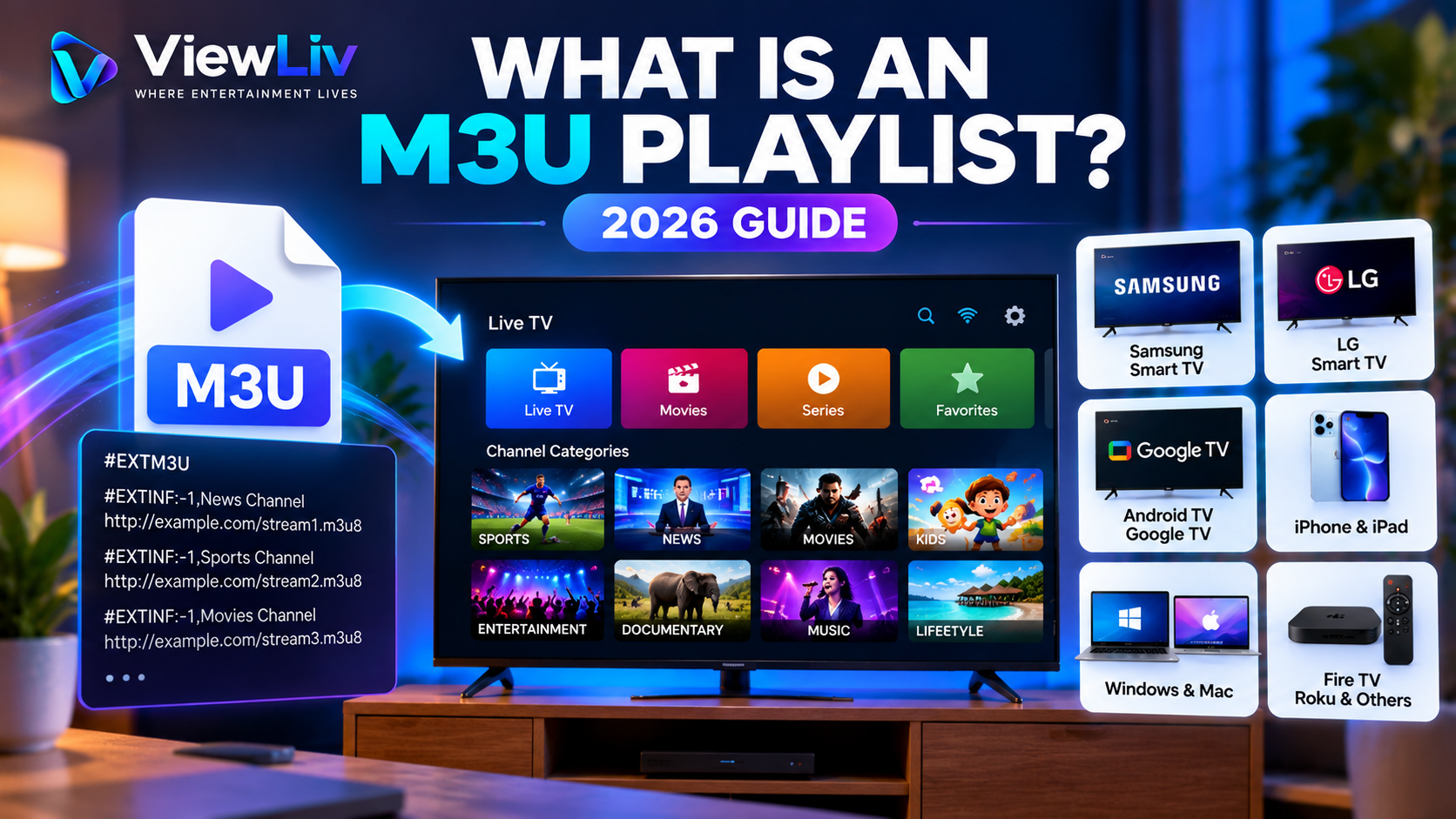
A simple example is:
#EXTM3U
#EXTINF:-1,Sample Educational Video
https://example.com/media/educational-video.mp4
This example illustrates the playlist format using a placeholder address. It is not a working streaming service.
The #EXTM3U line identifies the extended M3U format.
The #EXTINF line supplies information about a media entry.
The URL tells the player where the referenced media would be located.
Real playlists may contain many entries and additional application-specific information.
What Is an M3U URL?
An M3U URL is a web address that points to an M3U playlist.
Instead of downloading a playlist file manually, some media players allow you to enter the playlist's URL.
The application may then retrieve the playlist over the network.
Depending on the player and provider, it may also support refreshing the playlist when the source changes.
M3U File vs M3U URL
An M3U file is a playlist stored as a file on your device or computer.
An M3U URL points to a playlist hosted at a network location.
Both can describe media entries using the same basic playlist format.
The best option depends on your player's capabilities and how the authorized provider distributes its playlist.
What Is the Difference Between M3U and M3U8?
M3U and M3U8 are closely related playlist formats.
The main distinction is that M3U8 uses UTF-8 text encoding.
UTF-8 helps represent characters from different languages consistently.
M3U8 files are also widely associated with HTTP Live Streaming, commonly called HLS.
However, the filename extension alone does not tell you everything about the playlist's contents.
M3U
- Commonly used for multimedia playlists.
- May contain local paths or streaming URLs.
- Used by various audio, video, and IPTV applications.
- Character encoding can vary.
M3U8
- Uses UTF-8 text encoding.
- Commonly used with HLS streaming.
- Can describe media segments and variant streams.
- Supported by many compatible streaming applications.
Is an M3U8 File Always an IPTV Playlist?
No.
M3U8 files can be used for many types of online video, including authorized live events, educational broadcasts, and on-demand streaming.
Similarly, an M3U playlist can be used for music or local media rather than television.
How Are M3U Playlists Used in IPTV?
Some IPTV players use M3U playlists to organize available channels and media streams.
Depending on the application and playlist, entries may include:
- Channel names.
- Channel groups.
- Stream locations.
- Channel logos.
- Electronic Program Guide identifiers.
- Media titles.
The player reads the playlist and creates a navigation interface for the user.
For example, a compatible application might display authorized channels under categories such as News, Education, Entertainment, or Sports.
However, the availability of these features depends on the playlist data and the media player.
Not every M3U application supports television-specific metadata.
How to Use an M3U Playlist on a Smart TV
The installation process depends on your Smart TV's operating system.
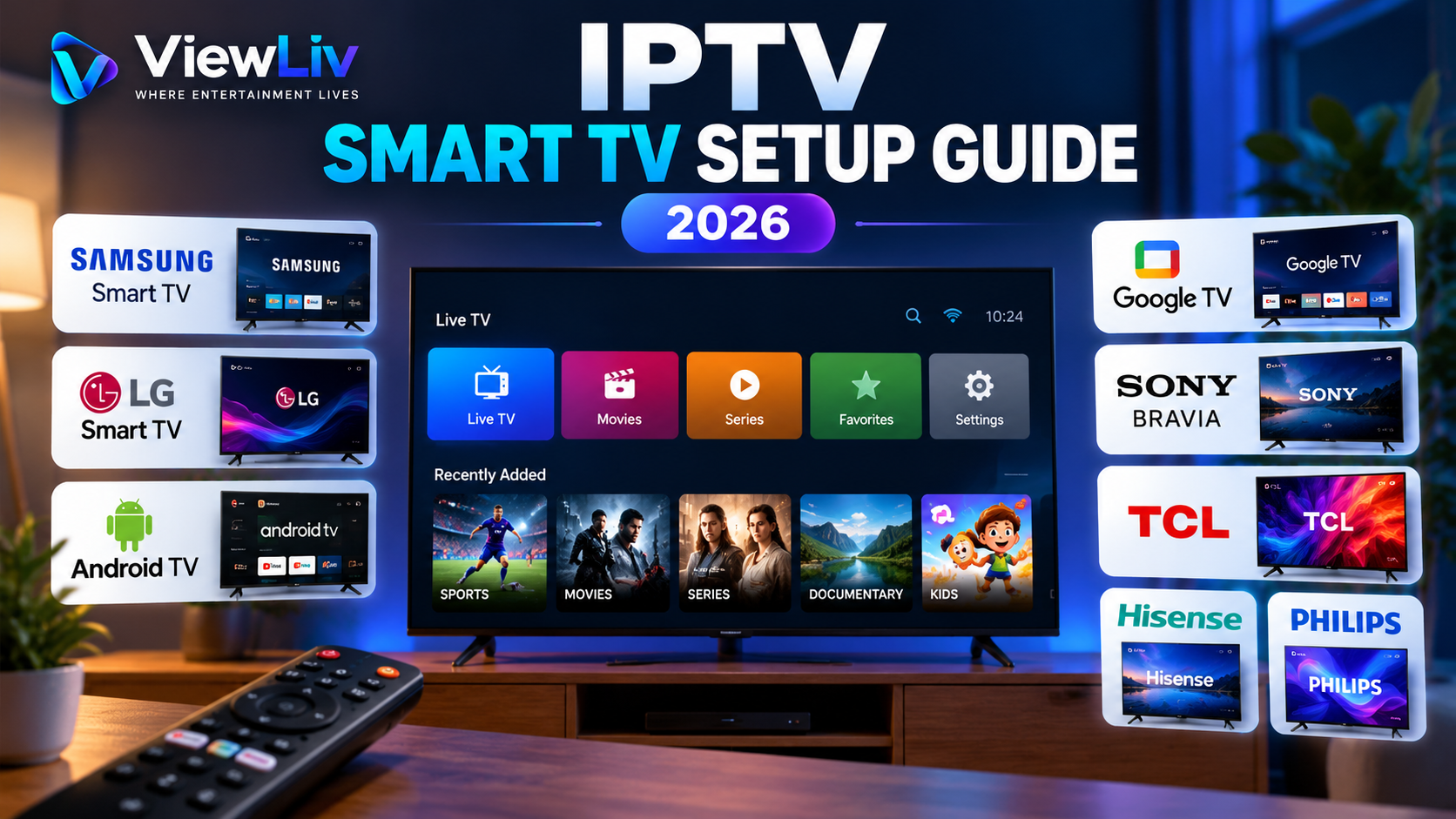
Samsung, LG, Android TV, Google TV, Roku TV, and other platforms have different application ecosystems.
Step 1: Check Your TV Compatibility
Open your television's settings and identify its operating system.
Step 2: Install a Compatible Media Player
Search your television's official application store for a media player that supports M3U playlists.
Check the app's description and compatibility information before installing.
Step 3: Obtain Your Authorized Playlist
Use a playlist supplied by a service authorized to distribute the content or create one for your own permitted media.
Step 4: Add the Playlist
Depending on the player, choose an option such as:
- Add Playlist.
- Import M3U.
- Open Network Stream.
- Add Playlist URL.
Enter the playlist URL or select the file.
Step 5: Load and Test Playback
Save the configuration, allow the playlist to load, and select an available entry.
If playback fails, verify the source and check the troubleshooting section below.
For brand-specific installation instructions, read our Smart TV IPTV Setup Guide.
How to Use an M3U Playlist on Android
Android phones, tablets, and compatible Android TV devices can use media applications that support M3U playlists.
The general process is:
- Open the Google Play Store.
- Find a reputable M3U-compatible media player.
- Install the application.
- Open its playlist management section.
- Import an authorized M3U file or URL.
- Wait for the playlist to load.
- Select an available media entry.
The exact menu names vary between applications.
Choose applications from trustworthy developers and review requested permissions before installing.
How to Use an M3U Playlist on iPhone or iPad
Some iOS and iPadOS media applications support M3U playlists.
To get started:
- Open the Apple App Store.
- Search for a compatible media player.
- Review the application's supported formats.
- Install and launch the application.
- Open its playlist or network-stream feature.
- Add an authorized M3U file or URL.
- Test the available content.
Some applications support local playlist imports through the Files app, while others accept web addresses.
App availability and functionality can change over time.
How to Open an M3U Playlist on Windows or Mac
Computers offer several ways to work with M3U playlists.
Compatible desktop media players can often open both local playlist files and network playlist URLs.
Using VLC Media Player
VLC is a multimedia player that supports a wide range of media formats and playlist types.
For a local playlist:
- Install VLC from its official website.
- Open VLC.
- Select the option to open a file.
- Choose your authorized
.m3uplaylist. - Select a media entry to begin playback.
For a playlist URL:
- Open VLC.
- Find the Open Network Stream option.
- Enter the authorized playlist URL.
- Start playback if the resource is accessible.
Menus can differ slightly between VLC versions and operating systems.
You can also inspect an M3U file using a plain-text editor, provided you do not expose private access credentials.
What Is an Electronic Program Guide (EPG)?
An Electronic Program Guide, or EPG, displays television schedule information.
Depending on the provider and application, it may show:
- Current programs.
- Upcoming programs.
- Broadcast times.
- Program descriptions.
- Channel information.
An M3U playlist and an EPG are not the same thing.
The playlist identifies media entries, while an EPG supplies programming information.
Some IPTV players can associate playlist channels with EPG data through identifiers or other mapping methods.
An EPG is optional and is not automatically included with every M3U playlist.
Can You Create Your Own M3U Playlist?
Yes.
Because M3U is a text-based format, you can create a playlist for media you own or are authorized to access.
For example, you might organize personal audio recordings, home videos, or freely distributed educational content.
Basic M3U Playlist Example
#EXTM3U
#EXTINF:-1,Family Video
C:\Videos\family-video.mp4
#EXTINF:-1,Educational Video
https://example.com/media/lesson.mp4
The first entry illustrates a local Windows file path.
The second uses a placeholder web address.
To create a playlist:
- Open a plain-text editor.
- Enter the playlist header and media references.
- Save the file using a
.m3uextension. - Open it in a compatible player.
- Confirm that the media locations are accessible.
Local file paths must match the device and operating system on which the playlist is used.
Common M3U Playlist Problems and Solutions
M3U playlists are simple in principle, but several problems can prevent them from loading correctly.
M3U Playlist Not Loading
Possible causes:
- Incorrect playlist URL.
- Unavailable server.
- Expired access.
- Network connection problems.
- Unsupported playlist format.
What to do:
Check the URL, verify your connection, and confirm that the playlist source is still available.
Playlist Loads but No Channels Appear
Possible causes:
- Empty playlist.
- Incorrect formatting.
- Unsupported metadata.
- Application parsing problems.
What to do:
Check the playlist in a text editor if you are authorized to inspect it, and verify that it contains valid entries.
Channels Appear but Do Not Play
Possible causes:
- Unavailable media source.
- Expired credentials.
- Unsupported video codec.
- Network interruptions.
- Provider-side restrictions.
What to do:
Try another authorized entry, check device compatibility, and contact your content provider when appropriate.
M3U Playlist Keeps Buffering
Buffering can result from slow or unstable connectivity, overloaded source infrastructure, Wi-Fi interference, or device limitations.
Try a stable network connection, update your player, and verify whether the problem affects every stream.
No playlist format can guarantee uninterrupted playback.
M3U File Opens as Text
This is normal.
An M3U file is a text document containing playlist information.
To play its referenced media, open it with a compatible media player instead of a text editor.
Playlist URL Shows an Error
Some playlist URLs require authentication or are restricted to authorized accounts.
Check whether the address is complete and whether your access remains valid.
Avoid sharing private playlist URLs publicly, as they may contain sensitive account information.
Are M3U Playlists Safe?
M3U is a text-based format, but that does not mean every playlist or referenced URL is trustworthy.
Potential risks include:
- Links to malicious or deceptive websites.
- Exposure of private account credentials.
- Untrusted applications requesting unnecessary permissions.
- Unauthorized content sources.
- Unexpected data usage.
- Privacy risks from unknown streaming infrastructure.
How to Use M3U Playlists More Safely
Use reputable media players, obtain playlists from trusted sources, and keep your devices updated.
Avoid installing unknown applications or sharing playlist links that contain account tokens, usernames, or passwords.
An M3U file is not itself proof that the media referenced within it is safe or authorized.
Is Using an M3U Playlist Legal?
The M3U format itself is legal.
It is a general-purpose playlist technology used in legitimate media applications.
The legality of a particular use depends on the content being accessed, copyright permissions, distribution agreements, and applicable laws.
Examples of legitimate uses include:
- Organizing personal music files.
- Playing your own home videos.
- Accessing authorized television broadcasts.
- Using properly licensed streaming services.
- Viewing freely distributed educational content.
However, some playlists reference copyrighted channels, movies, or programs without authorization.
Using, distributing, or reselling unauthorized streams can create legal risks depending on the jurisdiction and circumstances.
For a broader explanation, see What Is IPTV? How It Works & Legal Considerations.
M3U vs IPTV Subscription: What's the Difference?
An M3U playlist and an IPTV subscription are not the same thing.
M3U Playlist
An M3U playlist is a format for organizing media references.
It does not automatically include content rights, subscription access, or a media player.
IPTV Subscription
An IPTV subscription is an arrangement with a content service that may provide access to authorized television or video programming.
Some providers supply playlists, while others use dedicated applications or account-based login methods.
IPTV Player
An IPTV player is software that receives and plays compatible media streams.
The player, playlist, and content service serve different purposes.
Understanding these differences can help you choose compatible applications and evaluate services more carefully.
Frequently Asked Questions About M3U Playlists
What does M3U stand for?
M3U is commonly associated with the term MP3 URL, reflecting its origins as a multimedia playlist format.
Is M3U the same as IPTV?
No. M3U is a playlist format, while IPTV refers to television delivery over IP networks. Some IPTV applications use M3U playlists.
Can I use M3U on a Samsung Smart TV?
Yes, if your Samsung television supports a compatible M3U player through its application ecosystem.
Can I use M3U on an LG Smart TV?
Some LG webOS applications support M3U playlists. Availability depends on the television model, region, and app.
Can an M3U playlist contain movies?
An M3U playlist can reference video files or streams, including authorized movies, but it does not normally contain the video files themselves.
Do M3U playlists expire?
The playlist format does not have a built-in expiration date. However, individual URLs, access tokens, or provider accounts may expire.
Is M3U8 better than M3U?
Not necessarily. M3U8 uses UTF-8 encoding and is common in HLS streaming, but the best format depends on the application and use case.
Do I need an internet connection to open an M3U file?
Not always. A playlist referencing local files can work offline if those files are available. Internet-based streams require appropriate network access.
Can I edit an M3U playlist?
Yes, if you have permission to modify it. Because M3U is text-based, it can be edited using a plain-text editor.
Is an M3U playlist free?
The format itself is free to use. Access to the media referenced by a playlist may be free, paid, or restricted by licensing and authorization.
Final Thoughts
M3U playlists are a flexible way to organize and access multimedia content.
They can reference local files, internet streams, audio recordings, and video resources, making them useful across many types of media applications.
For IPTV users, M3U playlists can help compatible players organize authorized channels and streams.
However, a playlist is only one part of the playback process. The media player must support the format, the referenced content must be available, and access must comply with the relevant permissions and laws.
Whether you're using a Smart TV, Android device, iPhone, Windows computer, or Mac, understanding M3U technology can make media setup and troubleshooting easier.
For more tutorials, visit the ViewLiv Blog.
Published by ViewLiv — Where Entertainment Lives.
Disclaimer: This article is provided for educational purposes and does not constitute legal advice. Content availability, application compatibility, and copyright regulations vary by provider, device, and jurisdiction.