LG Smart TVs offer a convenient way to enjoy internet-based television and video without requiring a separate streaming device.
However, setting up IPTV on an LG television can be confusing, especially if you're unfamiliar with webOS, M3U playlists, Xtream Codes-style connections, or Electronic Program Guides.
Unlike Android TV, LG Smart TVs generally use webOS, which has its own application ecosystem and compatibility requirements.
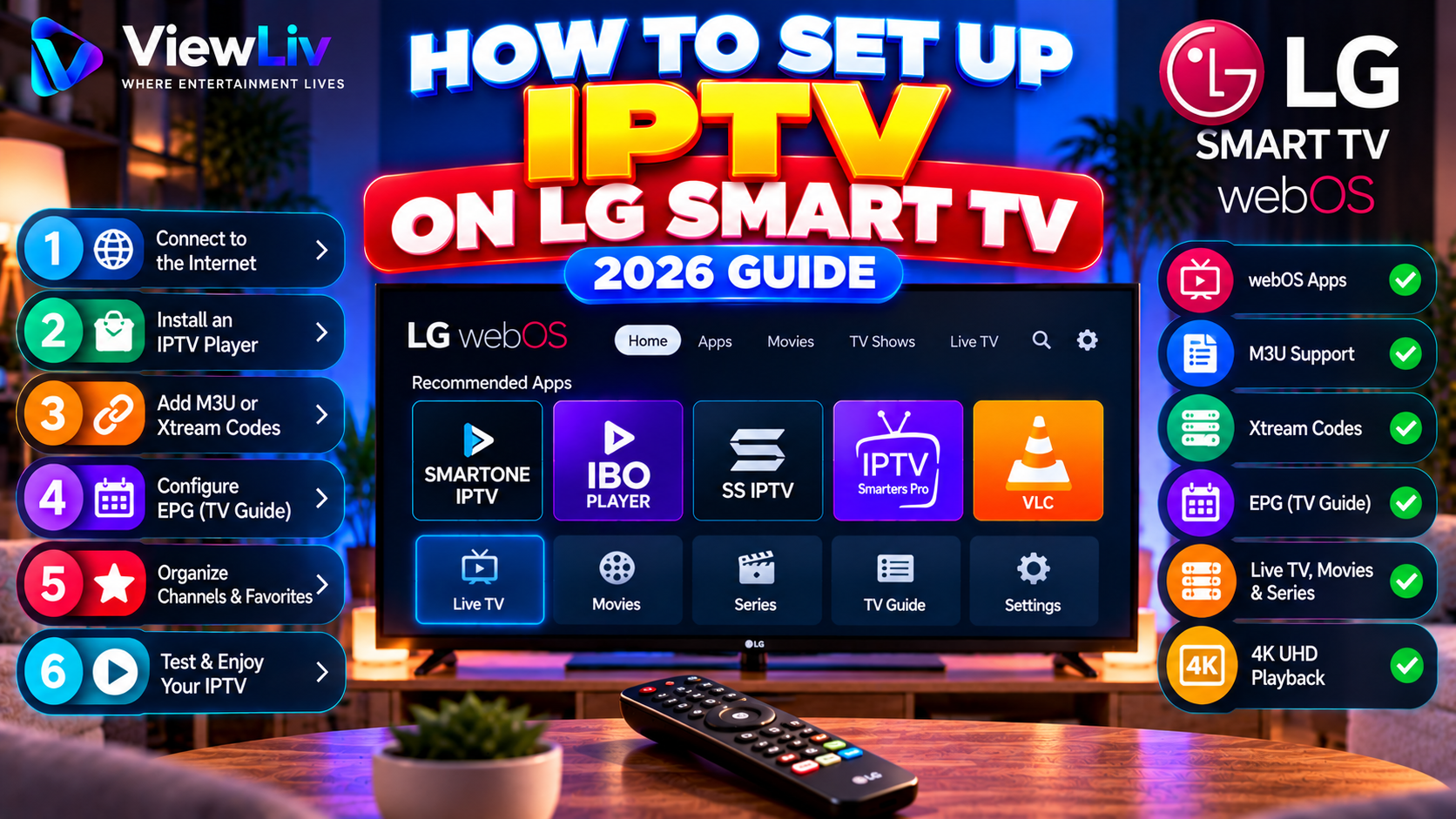
In this 2026 step-by-step guide, you'll learn how to install a compatible IPTV player on LG Smart TV, add an authorized playlist or streaming account, configure EPG information, organize channels, improve playback, and fix common problems.
What Is IPTV on LG Smart TV?
IPTV stands for Internet Protocol Television.
It describes delivering television and video content through internet-based networks.
A compatible LG Smart TV can access authorized internet streams using supported media player applications.
Depending on the player and content source, features may include:
- Live television playback.
- M3U and M3U8 playlist support.
- Xtream Codes-style account connections.
- Electronic Program Guides (EPG).
- Movies and series categories.
- Channel favorites.
- Subtitles and audio-track selection.
- Playback controls.
Important: An IPTV media player does not automatically provide television channels, movies, or subscriptions. Users must supply their own properly authorized media sources.
For a detailed introduction, read our What Is IPTV? Complete 2026 Guide.
Does LG Smart TV Support IPTV?
Many LG Smart TVs can run media applications capable of playing authorized IPTV streams.
However, application compatibility depends on several factors:
- Television model.
- webOS version.
- Country or region.
- App developer support.
- Available media codecs.
- Hardware capabilities.
Most modern LG Smart TVs use webOS rather than Android TV.
Therefore, Android APK files generally cannot be installed directly on LG webOS televisions.
Instead, you should select an application available through the television's supported application catalog.
What You Need Before Setting Up IPTV on LG TV
Prepare the following:
- A compatible LG Smart TV.
- A stable internet connection.
- Access to the LG application store.
- A compatible IPTV media player.
- An authorized M3U playlist or streaming account.
- Your playlist URL or account credentials.
- Your LG television remote.
If your authorized content source provides EPG information, keep those details available.
Avoid sharing private playlist links, passwords, or account tokens publicly.
Step 1: Connect LG Smart TV to the Internet
First, make sure your LG television is connected to the internet.
Connect Using Wi-Fi
On many LG webOS televisions:
- Turn on your LG Smart TV.
- Press the Settings button on the remote.
- Open the full settings menu.
- Navigate to Network or Connection settings.
- Select the Wi-Fi connection option.
- Choose your wireless network.
- Enter the Wi-Fi password.
- Confirm that the connection is established.
Menu names may differ depending on your LG model and webOS version.
Connect Using Ethernet
If your television has an Ethernet port, connect it to your router using a suitable network cable.
A wired connection may provide more consistent performance when wireless interference or weak Wi-Fi signals are causing problems.
Test Your Connection
Open another trusted streaming application.
If multiple applications fail to connect, investigate the television's network connection before configuring IPTV.
Step 2: Choose a Compatible IPTV Player for LG Smart TV
LG webOS uses a different application ecosystem from Android TV.
The best player depends on your television model and the applications available in your region.
Some IPTV media player products associated with LG Smart TV support include the following.
SmartOne IPTV
SmartOne IPTV is a playlist-based media player supporting selected Smart TV platforms.
Depending on the supported version, it may offer playlist management, channel organization, and other playback features.
Check the developer's official documentation for current LG compatibility, supported connection methods, and activation requirements.
IBO Player Applications
Some IBO-branded applications provide playlist-based media playback on compatible LG televisions.
Because similarly named applications exist, verify the developer, app identity, and current compatibility before installing.
SS IPTV
SS IPTV is another media player associated with Smart TV playlist playback.
Availability and supported features vary by television generation and region.
Check its current official documentation and app availability before relying on it.
Which IPTV Player Should You Choose?
Choose an application that:
- Supports your exact LG television model.
- Is available through a trusted distribution source.
- Supports your authorized playlist or account format.
- Offers the features you need.
- Has clear pricing and activation information.
- Provides appropriate developer support.
For a broader comparison, read our Best IPTV Players for Smart TV, Android TV, Fire TV & Windows.
Step 3: Install an IPTV Player on LG Smart TV
Once you've identified a compatible player, install it through the television's official application interface.
Installation Instructions
- Turn on your LG Smart TV.
- Press the Home button on your remote.
- Open the Apps interface or LG Content Store, depending on your model.
- Select the search function.
- Enter the name of your chosen IPTV player.
- Review the search results.
- Select the correct application.
- Verify the developer and app information.
- Choose Install, if available.
- Wait for installation to finish.
- Open the application.
Some applications require activation or account registration before full functionality becomes available.
Review the terms and pricing carefully.
Remember: Paying for an IPTV player does not necessarily include access to television channels or movies.
Step 4: Set Up IPTV Using an M3U Playlist
M3U is a text-based playlist format containing references to media resources.
Many IPTV players support M3U playlist URLs.
M3U Setup Instructions
- Open your installed IPTV player.
- Find the playlist or source-management section.
- Select Add Playlist or a similar option.
- Choose the M3U playlist method.
- Enter your authorized M3U URL.
- Add a recognizable playlist name if requested.
- Save the configuration.
- Wait for the player to retrieve the playlist.
- Test an available authorized stream.
What If the Player Uses a Companion Website?
Some LG IPTV applications use a companion website for playlist management.
The application may display a device identifier or activation code.
You may then need to visit the developer's official website and associate your playlist with the device.
Follow the application's documented procedure.
Never enter private credentials into an unrelated website.
Example M3U Playlist
A simplified M3U playlist may look like:
#EXTM3U
#EXTINF:-1,Example Channel
https://example.com/authorized-stream.m3u8
This is a format illustration, not an active television channel.
For more information, read our What Is an M3U Playlist? Complete Guide.
Step 5: Set Up IPTV Using Xtream Codes
Some LG-compatible IPTV players support Xtream Codes-style account connections.
This login method commonly requires:
- Server URL.
- Username.
- Password.
Xtream Codes Setup Instructions
- Open your IPTV player.
- Find Add Account or Add Playlist.
- Select Xtream Codes-style login if supported.
- Enter the server URL supplied by your authorized service.
- Enter your username.
- Enter your password.
- Save the configuration.
- Wait for the player to load the available media.
Not every LG IPTV player supports this method.
Some applications accept only M3U playlists, while others offer several connection options.
If your player does not support Xtream Codes-style login, use another compatible application or the authorized format supplied by your provider.
For a detailed explanation, read M3U vs Xtream Codes: What's the Difference?.
Step 6: Configure the Electronic Program Guide
An Electronic Program Guide, or EPG, displays television schedules and programme information.
Some authorized IPTV services provide guide data automatically.
Others may provide a separate EPG URL.
EPG Setup Instructions
- Open the IPTV player's settings.
- Find the EPG or TV Guide section.
- Check whether guide information is already configured.
- If manual configuration is supported, enter the authorized EPG source.
- Save the settings.
- Refresh the programme guide.
- Check the displayed schedules.
Why Is the EPG Not Working?
Possible causes include:
- Missing EPG data.
- Incorrect guide URL.
- Unmatched channel identifiers.
- Temporary guide-source problems.
- Application compatibility issues.
If the displayed programme times are incorrect, check the television's date, time, and time-zone settings.
Step 7: Organize Channels and Favorites
After loading your authorized playlist, customize the channel layout if the application supports it.
Useful options may include:
- Adding favorite channels.
- Hiding unused categories.
- Searching for channels.
- Organizing channel groups.
- Managing multiple playlists.
- Configuring parental controls.
- Adjusting EPG display settings.
These features can improve navigation when using an LG television remote.
Some options may require a paid application upgrade.
Step 8: Adjust Video and Audio Settings
Once your media source is configured, review the player's available playback options.
Video Resolution
Choose a resolution appropriate for your television, media source, and internet connection.
A 4K LG television does not guarantee that every stream is delivered in 4K.
Aspect Ratio
Use a setting that preserves the video's original proportions when possible.
Audio Tracks
If the media source supports multiple audio tracks, select the appropriate language or format.
Subtitles
Enable subtitles when supported by both the application and media source.
Codec Compatibility
Some streams use formats that may not be supported by every television or player.
If one stream fails, test another authorized source before changing unrelated settings.
Step 9: Test IPTV Playback on LG Smart TV
After configuration, test the application.
- Open an authorized live television stream.
- Confirm that the video appears.
- Check the audio.
- Navigate using your LG remote.
- Open the EPG if available.
- Test another permitted stream.
- Check subtitle options if needed.
- Observe playback stability.
If everything works, your basic LG Smart TV IPTV setup is complete.
IPTV Not Working on LG Smart TV? Common Problems and Fixes
If your IPTV player is not working, start by identifying the specific symptom.
Problem 1: IPTV App Not Available
Check whether the application supports your LG television model, webOS version, and region.
Problem 2: M3U Playlist Not Loading
Verify the playlist URL and internet connection.
Confirm that the authorized playlist remains accessible.
Problem 3: Xtream Codes Login Failed
Check the server URL, username, password, and account status.
Problem 4: IPTV Shows a Black Screen
Test another authorized stream.
The original source may be unavailable or use an unsupported media format.
Problem 5: IPTV Has No Sound
Check the television's volume, mute settings, audio output, and available audio tracks.
Problem 6: EPG Not Working
Verify the guide source, channel mappings, and time-zone settings.
Problem 7: Channels Missing
Refresh the playlist and check for hidden categories.
Problem 8: IPTV App Keeps Crashing
Restart the television and check for app and system updates.
Problem 9: IPTV Keeps Buffering
Test your network stability and compare other authorized streams.
Problem 10: IPTV Stopped Working After an Update
Review the application's official support information and compatibility requirements.
For more troubleshooting advice, read IPTV Not Working? 15 Common Problems and How to Fix Them.
How to Fix IPTV Buffering on LG Smart TV
Buffering occurs when the player cannot receive or process video data quickly enough to maintain continuous playback.
Common causes include:
- Weak Wi-Fi.
- Network congestion.
- Source-server instability.
- High video bitrate.
- Device limitations.
- Application playback problems.
Recommended Fixes
- Restart the LG television.
- Restart your router.
- Test your internet connection.
- Move the router closer if using Wi-Fi.
- Consider Ethernet where available.
- Reduce unnecessary network activity.
- Update the IPTV player.
- Test another authorized stream.
- Select a lower quality if available.
A faster internet connection does not guarantee uninterrupted playback if the source or device is experiencing problems.
For detailed troubleshooting, read How to Fix IPTV Buffering and Freezing.
Can You Install Android IPTV APKs on LG Smart TV?
Generally, no.
Most LG Smart TVs use webOS rather than Android.
Android APK files are designed for Android-compatible environments and cannot normally be installed directly on LG webOS televisions.
If your preferred application is available only on Android TV, consider using a compatible external streaming device.
Examples include supported Android TV or Google TV streaming devices.
This can provide access to a different application ecosystem without replacing your television.
LG Smart TV vs Samsung Smart TV for IPTV
Both LG and Samsung Smart TVs can support authorized IPTV playback through compatible applications.
However, their operating systems differ.
| Feature | LG webOS | Samsung Tizen | |---|---|---| | Application ecosystem | LG Apps / Content Store | Samsung TV Apps | | Android APK compatibility | Generally no | Generally no | | M3U playback | Player-dependent | Player-dependent | | Xtream Codes login | Player-dependent | Player-dependent | | EPG | Player-dependent | Player-dependent | | Remote navigation | Yes | Yes |
Neither operating system guarantees better IPTV performance.
Playback depends on application compatibility, device hardware, network stability, and media-source availability.
For Samsung-specific instructions, read How to Set Up IPTV on Samsung Smart TV.
LG Smart TV vs Android TV for IPTV
LG webOS and Android TV provide different application ecosystems.
Android TV offers access to compatible Android television applications, including players such as TiviMate and Sparkle TV.
LG webOS requires applications specifically compatible with its platform.
If you already own an LG Smart TV, a native webOS player may be the simplest option.
If you need a particular Android TV application, an external compatible streaming device may provide greater flexibility.
Read our How to Set Up IPTV on Android TV & Google TV for additional guidance.
Is IPTV Legal on LG Smart TV?
IPTV technology can be used for legitimate activities, including:
- Licensed streaming services.
- Authorized television broadcasts.
- Personal network media.
- Publicly distributed streams with appropriate permissions.
However, installing a media player does not automatically grant rights to access copyrighted television channels, movies, or programmes.
Users should obtain media from properly authorized sources and follow applicable laws and service terms.
Frequently Asked Questions
Can I install IPTV on LG Smart TV?
Yes. Compatible LG Smart TVs can run media applications capable of playing authorized IPTV streams.
Does LG Smart TV support M3U playlists?
Some LG-compatible IPTV players support M3U playlists. Check the specific application's features.
Can I use Xtream Codes on LG Smart TV?
Some compatible applications support Xtream Codes-style login, but not all do.
What is the best IPTV player for LG Smart TV?
The best option depends on your LG model, app availability, supported connection formats, and required features.
Can I install TiviMate on LG Smart TV?
TiviMate is designed for Android TV and generally cannot be installed directly on LG webOS.
Can I install IPTV Smarters on LG TV?
Availability depends on the exact application, developer, television model, and region. Check the LG app catalog.
Why is IPTV not working on my LG TV?
Possible causes include internet problems, invalid connection details, unavailable streams, unsupported formats, or application errors.
Why is IPTV buffering on LG Smart TV?
Buffering may involve unstable Wi-Fi, network congestion, source-server issues, or device limitations.
Can LG Smart TV play 4K IPTV?
Some LG televisions support 4K video, but the source, application, codec, and network must also be compatible.
Do I need a VPN for IPTV on LG Smart TV?
A VPN is not inherently required for IPTV playback and does not fix incorrect credentials or unavailable streams.
Can I install Android APKs on LG webOS?
Android APK files generally cannot run directly on LG webOS.
How do I update an IPTV app on LG TV?
Use the television's supported app-update mechanism. The exact steps vary by model and webOS version.
Can I use multiple IPTV playlists on LG TV?
Some applications support multiple playlists, while others have limitations.
What if my preferred IPTV app is unavailable on LG?
Consider another compatible webOS application or a supported external streaming device.
Does LG Smart TV include IPTV channels?
An IPTV player does not automatically provide premium television channels. Any available content depends on the television's legitimate services and your authorized media sources.
Final Thoughts
Setting up IPTV on an LG Smart TV in 2026 is generally straightforward when you choose a compatible webOS media player and have the correct authorized connection information.
Start by connecting your television to the internet and installing a trusted IPTV application.
Next, configure your M3U playlist or supported Xtream Codes-style account, set up the EPG, and organize your channels.
Finally, test playback and adjust settings only when necessary.
If your preferred player is available only on Android TV, a compatible external streaming device may provide an alternative.
For more helpful tutorials, explore the ViewLiv Blog, including our guides to Samsung Smart TV IPTV Setup, Best IPTV Players, and IPTV Troubleshooting.
Published by ViewLiv — Where Entertainment Lives.
Disclaimer: This article is provided for educational purposes. ViewLiv recommends using trusted applications and properly authorized streaming sources. Application availability, compatibility, and features vary by device, region, and software version.