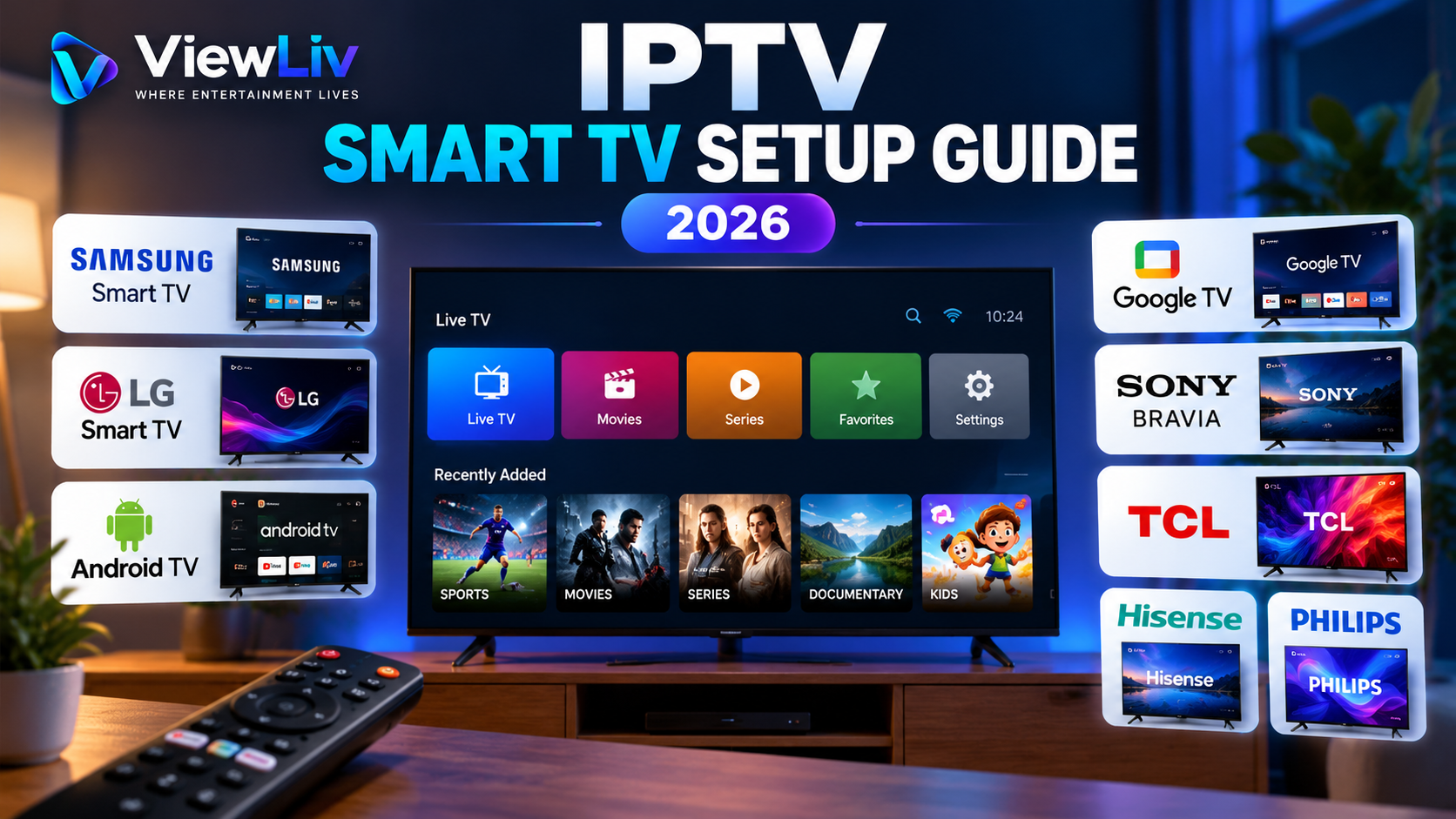
Setting up IPTV on a Smart TV can be straightforward, but the exact process depends on your television's operating system, the applications available in its app store, and the type of access provided by your authorized television service.
Samsung, LG, Android TV, Google TV, Sony, TCL, Hisense, and Philips televisions don't all use the same software. An IPTV player that works on one model might not be available on another.
In this guide, you'll learn how to set up IPTV on different Smart TV platforms, understand M3U playlists and provider login methods, configure your viewing experience, and solve common setup problems.
Important: An IPTV player is not a television subscription. You need a legitimate source of content that you are authorized to access.
What Do You Need Before Setting Up IPTV?
Before installing anything, make sure you have the following:
- A compatible Smart TV: Confirm your television's brand, model, and operating system.
- A stable network connection: Connect your TV to your home network using Wi-Fi or Ethernet.
- An IPTV player: Choose an application supported by your TV's operating system.
- Authorized content access: Obtain a playlist, account credentials, or provider application from a service permitted to distribute its content.
- A remote control: You will need it to navigate your TV's menus and enter login information.
Some IPTV players require a separate application purchase or activation fee. This does not necessarily include access to television channels.
Step 1: Identify Your Smart TV Operating System
The most important first step is identifying the software running on your television.
Samsung Smart TVs — Tizen
Many Samsung Smart TVs use Samsung's Tizen operating system.
These televisions generally install applications through Samsung's built-in app store.
You cannot assume that an Android APK will work on a Samsung Tizen TV.
LG Smart TVs — webOS
LG Smart TVs commonly use webOS.
Applications are normally installed through the LG Content Store or Apps section, depending on the model.
Android applications cannot normally be installed directly on webOS.
Android TV and Google TV
Android TV and Google TV are related Google television platforms.
They are used on various television models and streaming devices, including certain Sony, TCL, Hisense, Philips, and other televisions.
Compatible applications are typically available through the Google Play Store.
Roku TV
Some TCL, Hisense, and other television models use Roku TV rather than Android TV or Google TV.
Roku has its own application ecosystem. An Android IPTV player cannot simply be installed as a Roku application.
Fire TV Smart TVs
Some televisions use Amazon's Fire TV operating system.
These devices have their own application interface and access to compatible apps through Amazon's ecosystem.
Tip: A television brand does not always determine its operating system. Check your exact model before following installation instructions.
Step 2: Connect Your Smart TV to the Internet
A reliable network connection is essential for internet-delivered television.
- Turn on your Smart TV.
- Open Settings.
- Find Network, Connections, or Internet Settings.
- Choose Wi-Fi or wired Ethernet.
- Select your home network if using Wi-Fi.
- Enter your Wi-Fi password if requested.
- Confirm that the television is connected.
Menu names vary by brand and software version.
Should You Use Wi-Fi or Ethernet?
Both connection types can work.
Wi-Fi is convenient and requires no additional cable, but its performance can be affected by interference, distance, and network congestion.
Ethernet provides a wired connection and may offer greater consistency when your television is close to the router.
If your Smart TV frequently buffers, testing a wired connection is a useful troubleshooting step.
Step 3: How to Set Up IPTV on a Samsung Smart TV
Samsung televisions running Tizen require applications compatible with Samsung's operating system.
Install a Compatible IPTV Player
- Turn on your Samsung Smart TV.
- Connect it to the internet.
- Open the Apps section or the application search interface.
- Search for an IPTV player compatible with your model.
- Read the application's description and supported features.
- Install the application if it is available.
- Launch it from your TV's home screen.
Availability varies by country, model year, and app-store policies.
Add Your Authorized Playlist or Account
Depending on the player, you may be able to enter:
- An M3U playlist URL.
- Provider-issued login credentials.
- A playlist or account code.
- A configuration method supported by the application.
Some players use a separate website for playlist management. Follow the instructions provided by the application developer.
After adding the details, wait for the application to load the available content.
Note: Never enter subscription credentials into an unfamiliar website without checking that it belongs to the application or service you intended to use.
Step 4: How to Set Up IPTV on an LG Smart TV
LG webOS televisions follow a similar general process, but their applications differ from Samsung's.
Install an IPTV Player on LG webOS
- Turn on your LG Smart TV.
- Open the home interface.
- Launch the LG Content Store or Apps section.
- Search for a compatible IPTV player.
- Check that the application supports your television model.
- Install and open the application.
The interface may vary across webOS versions.
Configure the Player
Your application may request a playlist URL, provider account details, or an activation process.
Enter only the information supplied by an authorized service.
If the player offers an EPG setting, you may also be able to configure television program information.
Once the playlist or account has loaded, use the channel categories or content menu to navigate.
Why Can't I Find an IPTV App on LG?
Possible explanations include:
- The app is unavailable in your region.
- Your television uses an older webOS version.
- The application no longer supports your model.
- The app has been removed from the store.
- The search term doesn't match the application's official name.
Avoid downloading software from unknown websites that claim to bypass webOS compatibility restrictions.
Step 5: How to Set Up IPTV on Android TV or Google TV
Android TV and Google TV offer access to a broad range of compatible media applications.
The general setup process is similar on both platforms.
Install an IPTV Player
- Turn on your Android TV or Google TV.
- Connect to your home network.
- Open Apps or the Google Play Store.
- Search for a compatible IPTV player.
- Review its features, ratings, permissions, and developer information.
- Select Install.
- Open the application.
Some applications support remote-control navigation better than others, so choosing a TV-optimized player is important.
Configure Your IPTV Account
Depending on the application, choose the appropriate login method.
M3U Playlist
Enter the authorized M3U URL supplied by your provider.
Provider Login
Some players support provider-specific login methods, which may request a server address, username, and password.
Official Provider Application
Some legitimate television providers supply their own apps. In that case, follow their official login instructions rather than using a third-party player.
Load the Content
After configuring the application:
- Save your account or playlist details.
- Allow the application to load its available content.
- Open the live television or on-demand section.
- Select an available program.
- Test playback.
If a stream fails, verify that the account is active and that your provider authorizes access to the content.
Step 6: Setup Instructions for Sony, TCL, Hisense and Philips TVs
These brands may use different operating systems depending on the model and region.
Sony Smart TVs
Many Sony BRAVIA models use Android TV or Google TV.
For those models, follow the Android TV or Google TV instructions above.
Older Sony televisions may use different software and have different application limitations.
TCL Smart TVs
TCL produces televisions with different operating systems, including Google TV, Android TV, Roku TV, and others depending on the market.
Check the operating system in the television settings before selecting an IPTV player.
Hisense Smart TVs
Hisense televisions may use VIDAA, Google TV, Android TV, Roku TV, or other software depending on the model.
If your Hisense television uses Google TV or Android TV, follow the relevant instructions above.
For VIDAA models, use the built-in application store and confirm whether a compatible player is available.
Philips Smart TVs
Philips television operating systems vary by model and region.
Some models use Android TV or Google TV, while others use different platforms.
Use the installation method appropriate for your specific television.
Remember: Always identify the operating system first. This is more reliable than following instructions based only on the manufacturer's name.
Step 7: Understanding M3U and Provider Login Methods
When configuring IPTV, you may encounter several different connection methods.
What Is an M3U Playlist?
An M3U playlist is a text-based format that contains references to media files or streaming locations.
An IPTV player can use the playlist to organize and access compatible streams.
A playlist does not automatically include distribution rights to the content it references.
What Is an M3U URL?
An M3U URL is a web address pointing to a playlist.
Some applications allow you to paste this URL directly into the player.
Other applications use a separate account-management page.
What Is an IPTV Provider Login?
Certain IPTV applications support account-based connections.
The player may request:
- A server URL.
- A username.
- A password.
- A profile name.
These details must come from the service you are authorized to use.
Which Login Method Is Better?
Neither method is universally better.
The correct option depends on the player, the service, and the configuration methods they support.
Use the connection method recommended by your authorized provider.
Step 8: Configure the Electronic Program Guide (EPG)
An Electronic Program Guide, or EPG, displays information about television programs.
Depending on the application and provider, an EPG can show:
- Current programs.
- Upcoming programs.
- Channel schedules.
- Program descriptions.
- Broadcast times.
How to Enable EPG
- Open your IPTV player's settings.
- Look for EPG, TV Guide, or Program Guide.
- Check whether the guide is already configured.
- If required, enter the guide source provided by your authorized service.
- Save the settings.
- Refresh the guide data if the application supports it.
Not all applications or services provide EPG functionality.
If program times appear incorrect, check the television's time zone and the EPG source settings.
Step 9: Optimize IPTV Playback on Your Smart TV
After setup, a few adjustments can help improve playback reliability.
Use a Stable Network
Avoid relying only on advertised download speed.
A consistent connection with low packet loss is important for smooth streaming.
Update Your TV Software
Install official television firmware updates when available.
Updates may fix application compatibility issues and playback problems.
Keep Your Player Updated
Use the latest compatible version of your IPTV player from its official distribution channel.
Close Unnecessary Applications
Some televisions have limited memory and processing power.
Closing unused applications may help reduce resource pressure.
Check Video Compatibility
Different players and televisions support different video codecs and streaming formats.
If one stream fails while others work, the issue may involve codec support, source availability, or provider configuration.
Avoid Unverified Applications
Install software from reputable sources and review permissions carefully.
Unknown apps and unofficial downloads can create privacy and security risks.
What Internet Speed Is Recommended for IPTV on a Smart TV?
Streaming requirements depend on the video's resolution, compression, frame rate, and the provider's delivery system.
These are general planning estimates for one stream:
Standard Definition (SD)
Approximately 3–5 Mbps
High Definition (HD)
Approximately 5–10 Mbps
Full HD (1080p)
Approximately 10–15 Mbps
4K Ultra HD
Approximately 25 Mbps or more
These figures are approximate rather than universal requirements.
If several devices are streaming simultaneously, your household may need additional bandwidth.
Network stability also matters. A fast but unstable connection can still cause buffering.
Common IPTV Setup Problems and Solutions
Even after following the correct installation steps, you may encounter occasional issues.
IPTV App Not Available on Smart TV
Possible causes: Unsupported operating system, regional restrictions, outdated television software, or app-store availability.
What to do: Check the TV model, operating system, app compatibility, and official store listings.
M3U Playlist Not Loading
Possible causes: Incorrect URL, expired access, network issues, or unavailable playlist source.
What to do: Verify the URL carefully, confirm your access with the provider, and test the network connection.
IPTV Username or Password Not Working
Possible causes: Typing errors, expired credentials, incorrect server address, or account restrictions.
What to do: Recheck the details and contact your authorized provider if necessary.
IPTV Channels Keep Buffering
Possible causes: Wi-Fi interference, internet congestion, source problems, or device limitations.
What to do: Test your connection, restart the player, try Ethernet where possible, and check whether the issue affects all streams.
No Sound During Playback
Possible causes: Unsupported audio format, incorrect audio settings, or an issue with the source.
What to do: Check your TV's audio settings, try another authorized stream, and verify player compatibility.
EPG Not Showing
Possible causes: Missing guide source, outdated EPG data, incorrect time settings, or unsupported functionality.
What to do: Refresh the guide, verify the configured source, and confirm that your service supports EPG.
IPTV App Crashes or Freezes
Possible causes: Outdated software, low available memory, application bugs, or compatibility problems.
What to do: Restart the TV, update the application, and reinstall it from its official source if necessary.
Can You Use IPTV Without Installing an App?
Sometimes.
Certain legitimate television services provide access through a supported web browser or a built-in television application.
However, many Smart TV browsers have limitations involving video formats, digital rights management, performance, or remote-control navigation.
A compatible official application is generally the more reliable option when one is available.
Is IPTV Legal on a Smart TV?
IPTV technology itself is legal. Installing a legitimate media player on a Smart TV is not inherently unlawful.
However, the legality of accessing specific channels, movies, or programs depends on the rights held by the content provider and the laws applicable in your location.
Before subscribing to a service, check that it is authorized to distribute the content it offers.
A player application, M3U playlist, or successful stream does not establish that a provider holds copyright or broadcasting rights.
For more background, read our guide: What Is IPTV? How It Works, Benefits & Legal Considerations (2026 Guide).
Frequently Asked Questions
Can I install IPTV on any Smart TV?
Not necessarily. IPTV app availability depends on the television's operating system, model, region, and supported software.
Can I install an Android APK on a Samsung Smart TV?
Samsung Tizen televisions do not normally support direct installation of Android APK applications. Use apps designed for the Samsung platform.
Does LG Smart TV support IPTV?
Many LG webOS televisions support compatible IPTV players, although availability depends on the model, webOS version, and region.
Which Smart TV is best for IPTV?
There is no single best choice for everyone. Consider app compatibility, video format support, hardware performance, update availability, and the services you intend to use.
Do I need an IPTV subscription?
You need an authorized source of content. Some legitimate services require a paid subscription, while others provide free-to-access or publicly distributed programming.
Can I use an M3U playlist on a Smart TV?
Yes, if your Smart TV has a compatible application that supports M3U playlists.
Why does IPTV work on my phone but not on my TV?
The devices may use different applications, video decoders, network configurations, or operating systems. A stream compatible with one device may not work on another.
Can I watch IPTV in 4K?
Some authorized services support 4K streaming. You need compatible content, a capable television and player, and sufficient network bandwidth.
Do I need a VPN to watch IPTV?
A VPN is not inherently required for IPTV technology. Whether one is useful depends on your network, privacy requirements, service terms, and local laws. A VPN does not make unauthorized content distribution legal.
Final Thoughts
Setting up IPTV on a Smart TV begins with identifying the correct operating system.
Samsung Tizen, LG webOS, Android TV, Google TV, Roku TV, Fire TV, and other platforms have different application ecosystems, so installation instructions are not interchangeable.
Once you've selected a compatible player and obtained authorized content access, you can configure your playlist or account, enable available EPG features, and optimize your network for reliable playback.
The most important factors are compatibility, connection stability, application security, and using content from properly authorized sources.
For more beginner-friendly explanations and device tutorials, explore the ViewLiv Blog.
Published by ViewLiv — Where Entertainment Lives.
Disclaimer: This guide is provided for educational purposes. App availability, television menus, and supported features vary by model and region. Copyright and broadcasting regulations vary by jurisdiction.